Once Social Listening is connected, we’ll be able to display:
Content where your brand has been tagged (from the past 2 months).
Mentions of your brand in comments.

Once connected to Social Listening, you’ll be able to reuse the content published by your consumers on Instagram.
First, you can sort the content you’re searching for. Here are the available filters:
Status:
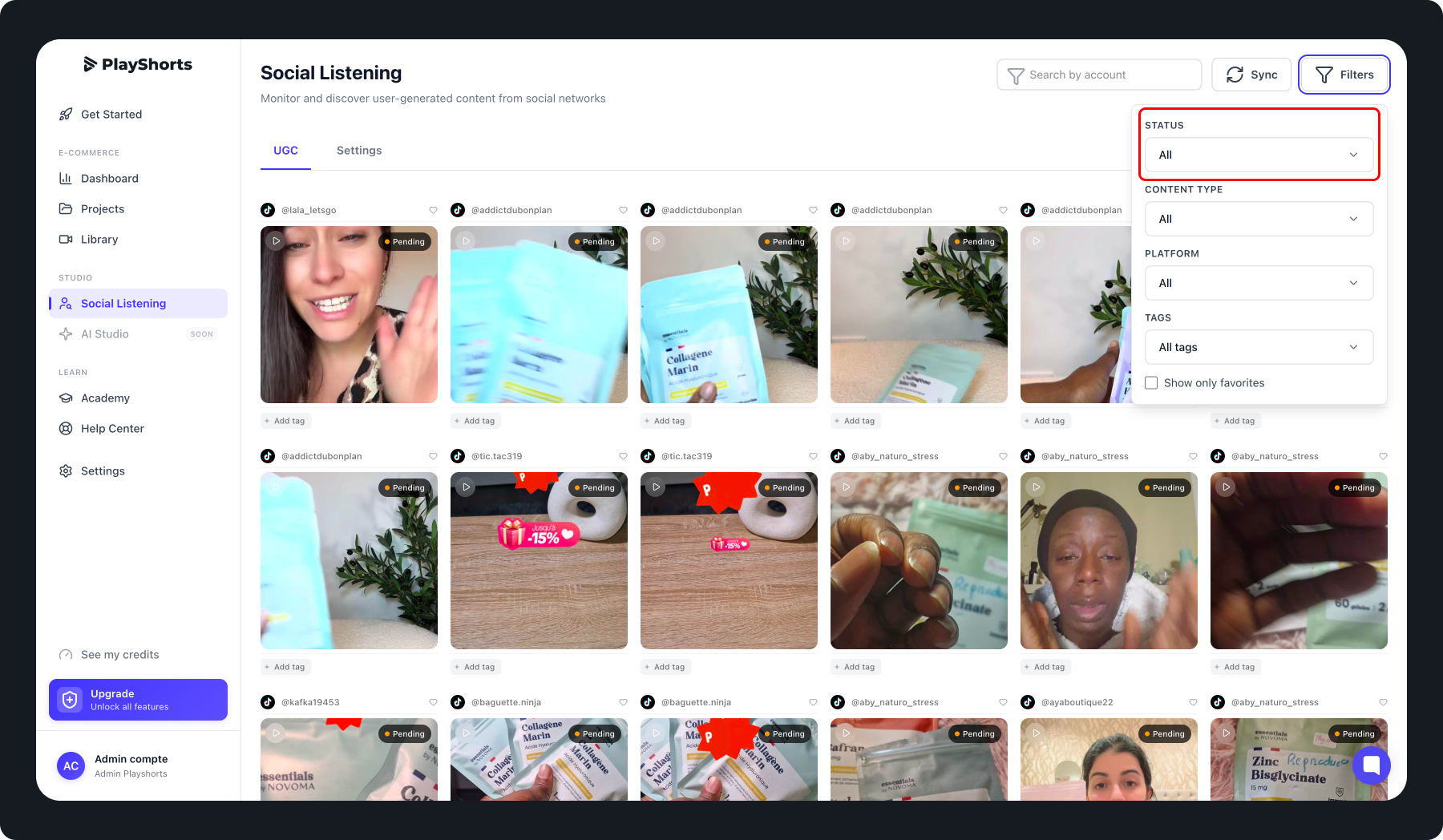
Filter content based on the status of your usage rights requests. With Social Listening, you can request permission to use content for commercial purposes. Once each request is processed, you can update its status:
Not requested: request not made
Pending: awaiting response
Approved: approved
Rejected: denied
Content type:
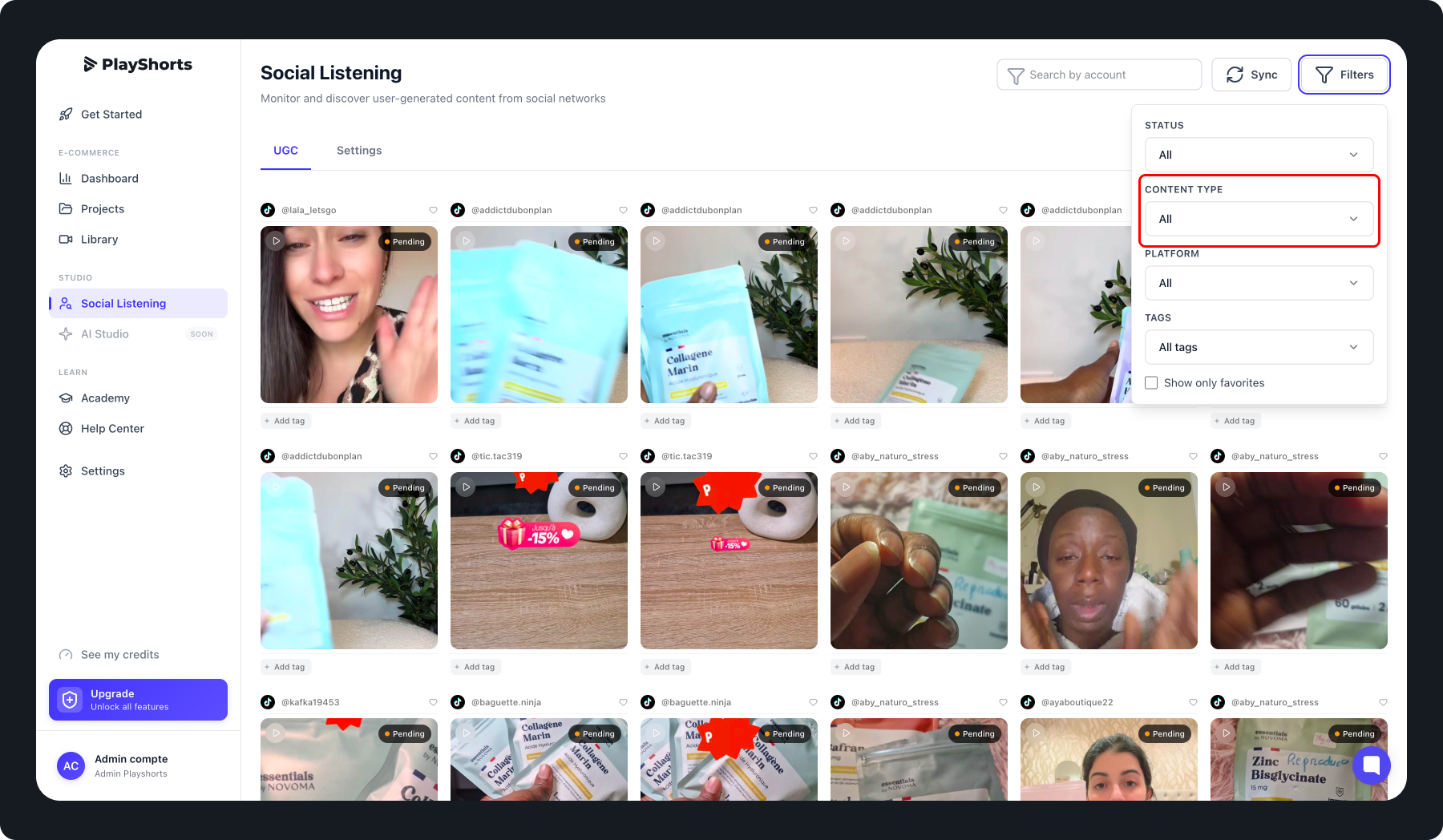
Filter content by photo or video.
Platform:
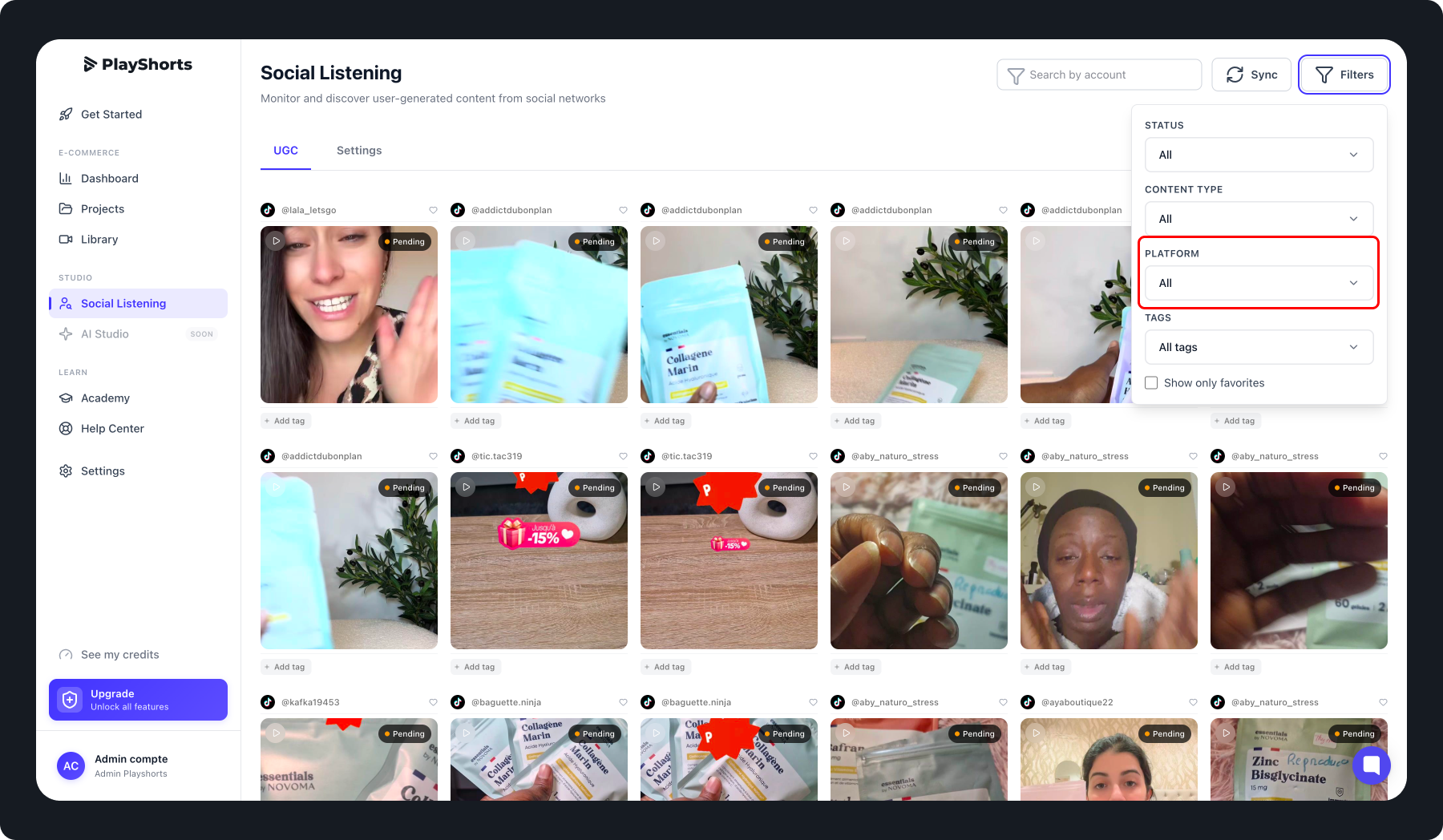
Filter content by distribution platform: TikTok or Instagram
Tags:
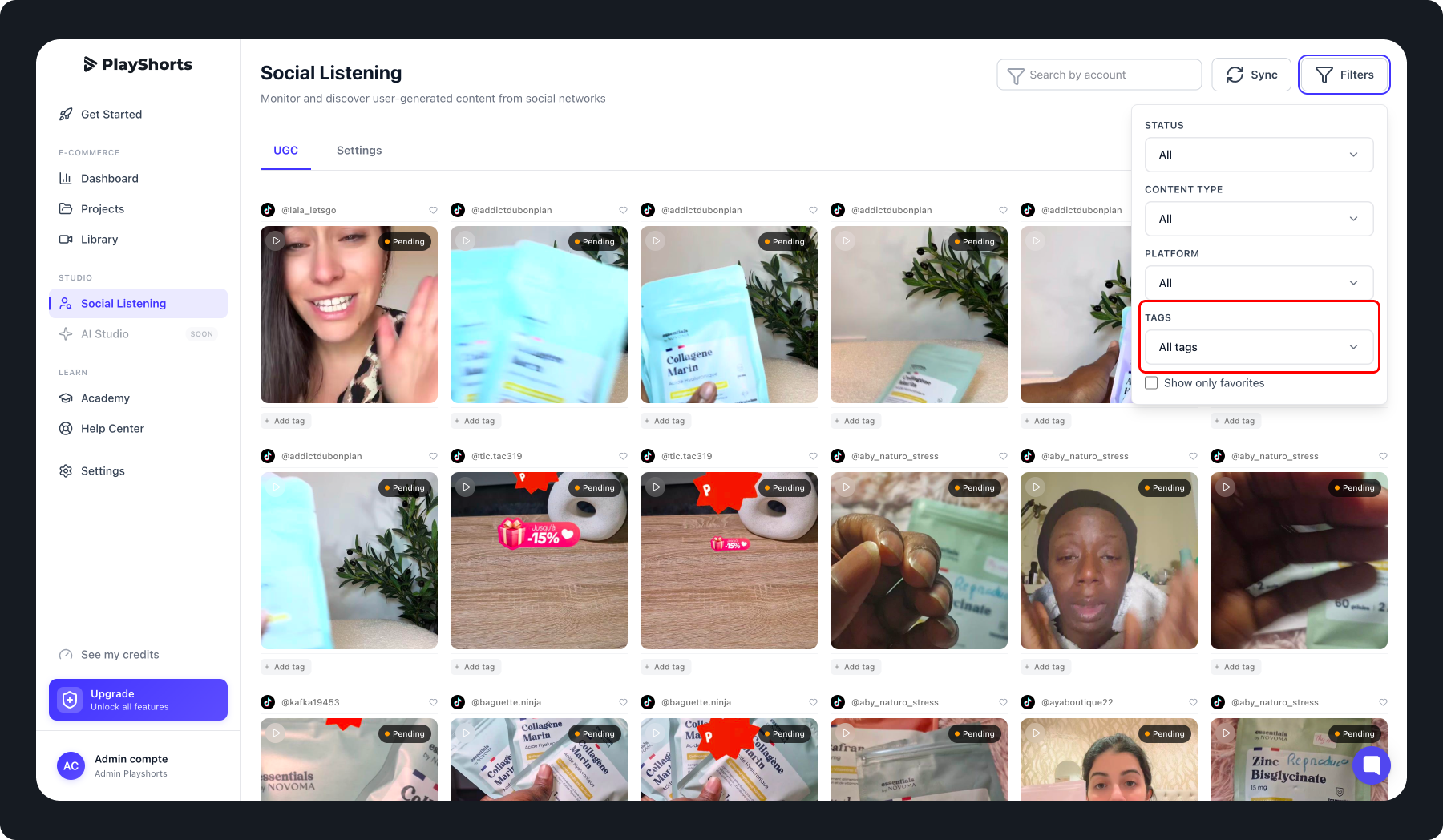
For each piece of content, you can add custom tags to make your searches easier. All the tags you’ve created will appear here.
Favorites:
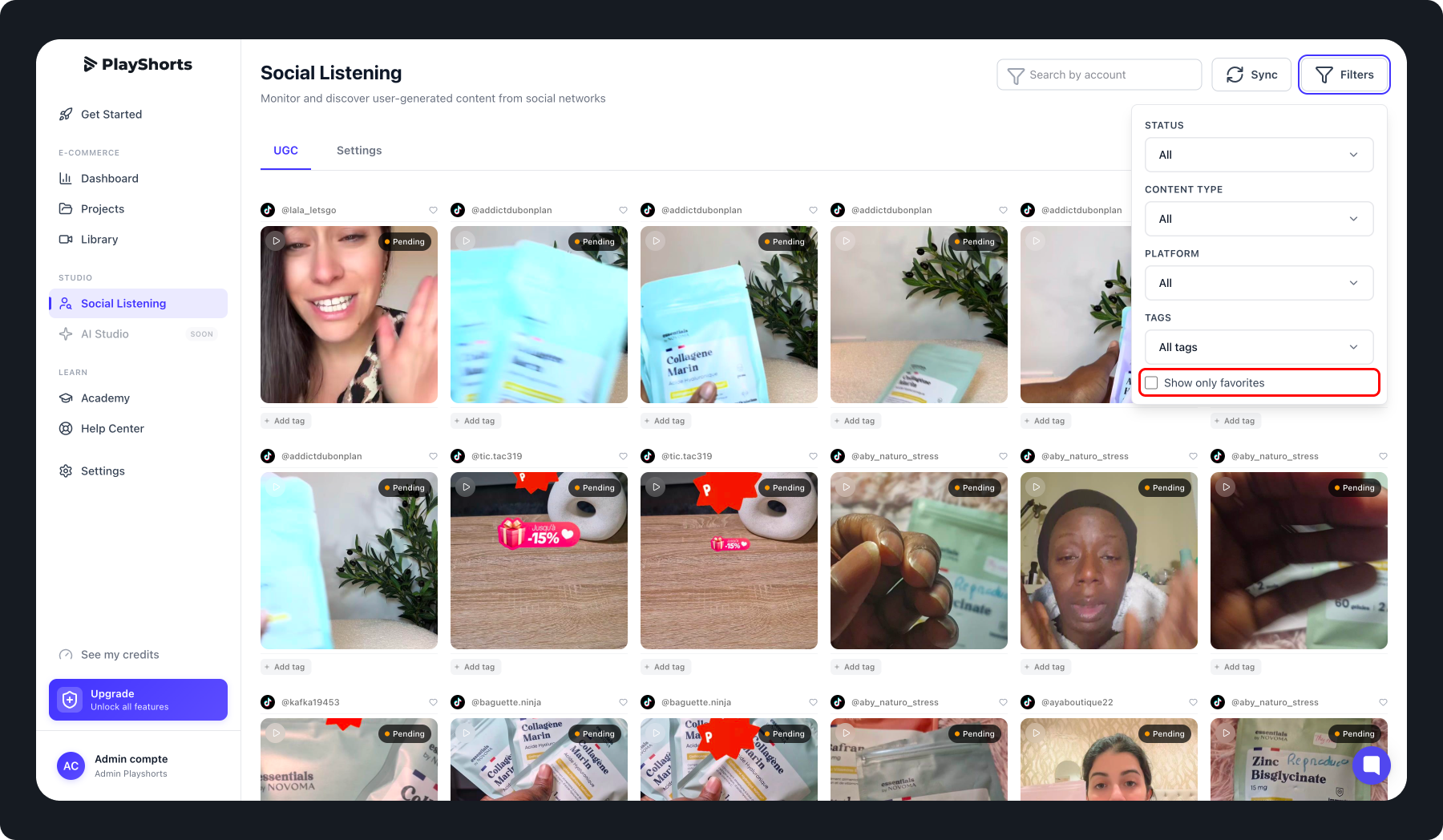
Find your favorite content.
Account name:
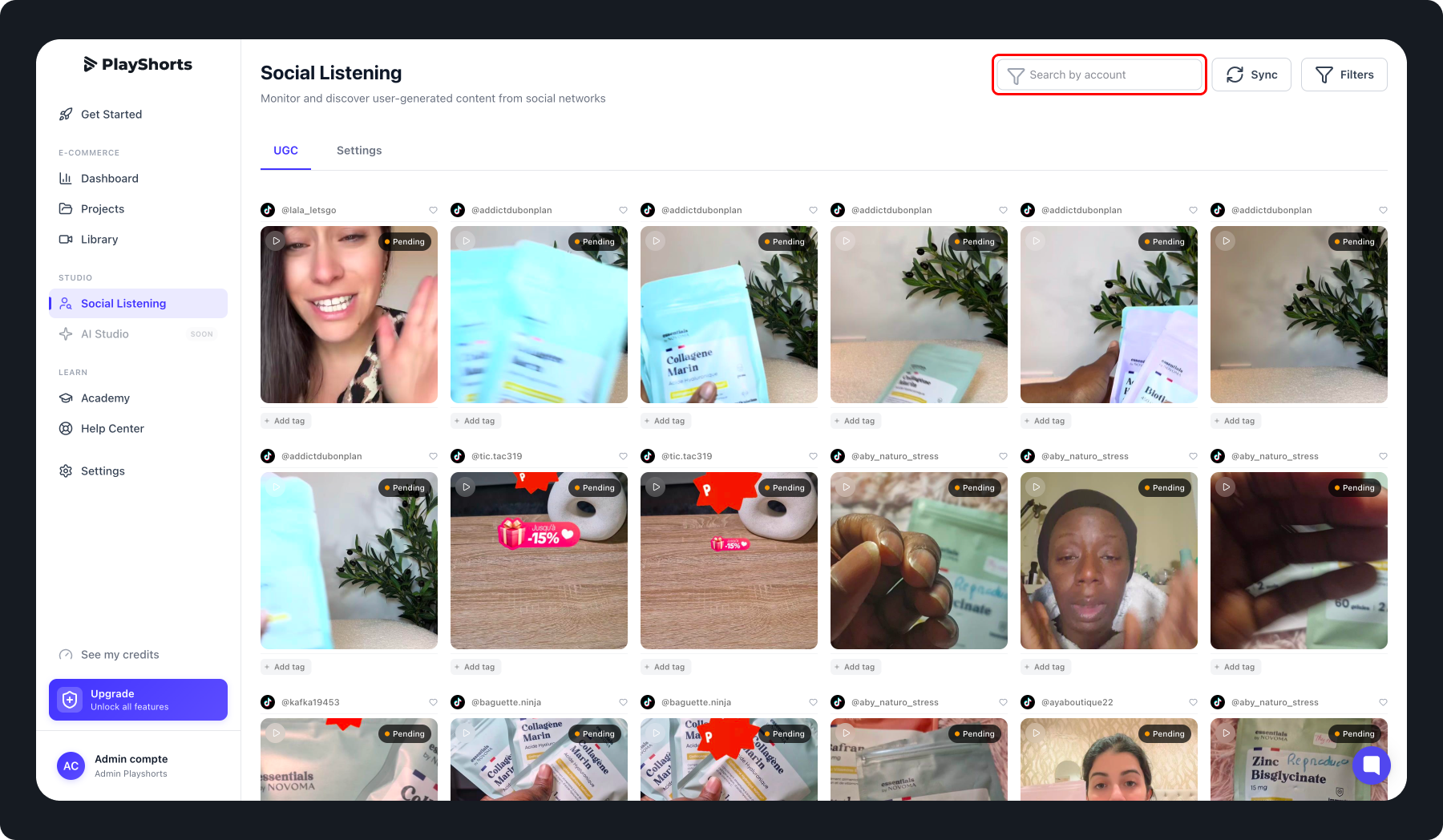
Search for content from a specific profile by typing the account name in the search bar.
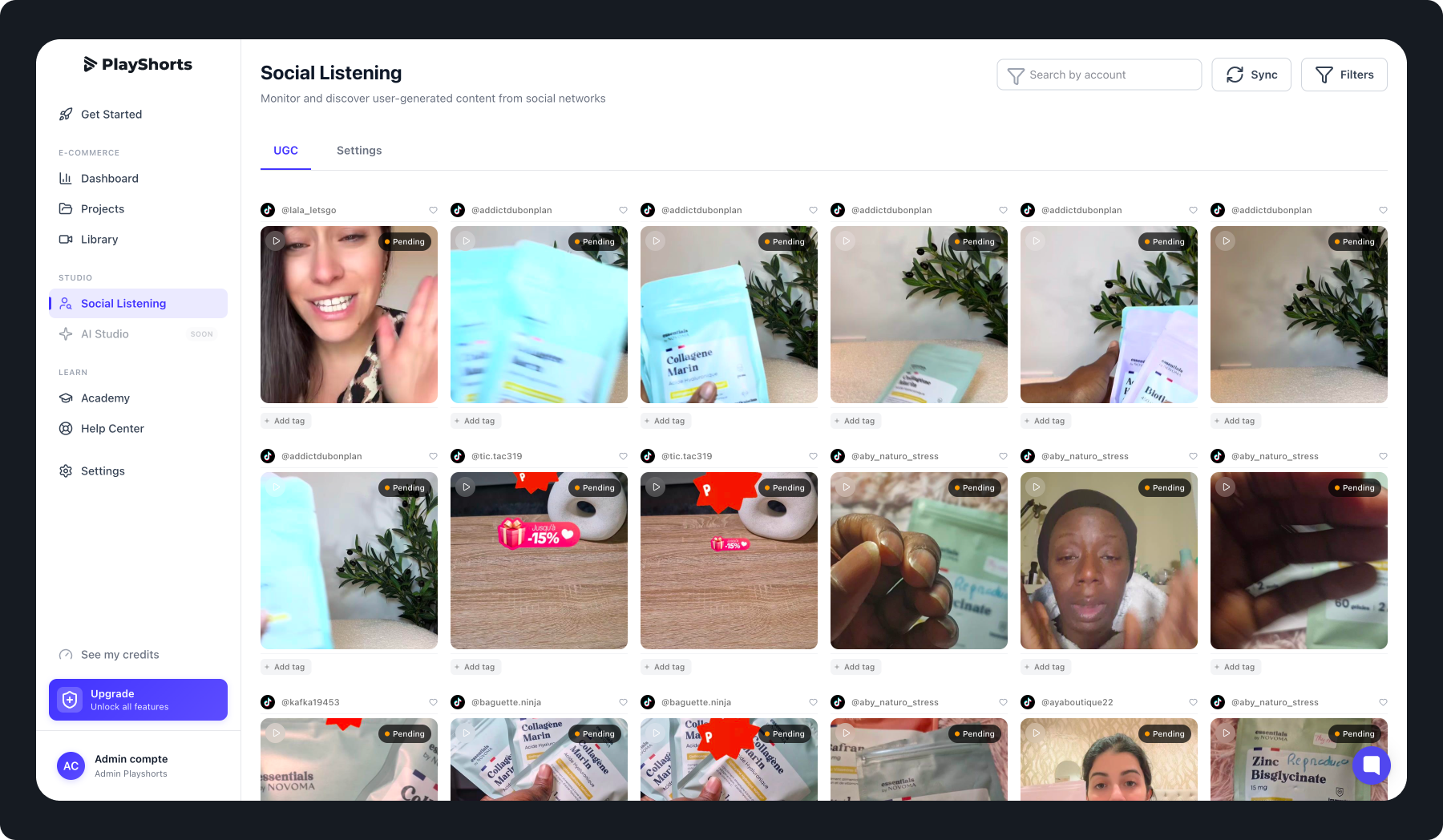
In this section, you’ll see all the Instagram and TikTok content where your consumers tag or mention your brand.
Tag: Content where your brand is identified in a photo or video.
→ Updates occur once per day.
Mention: Content where your brand name appears in the caption (e.g., @brandname).
→ Updates happen in real time.
With PlayShorts, you can request copyright permissions for posts published by your consumers.
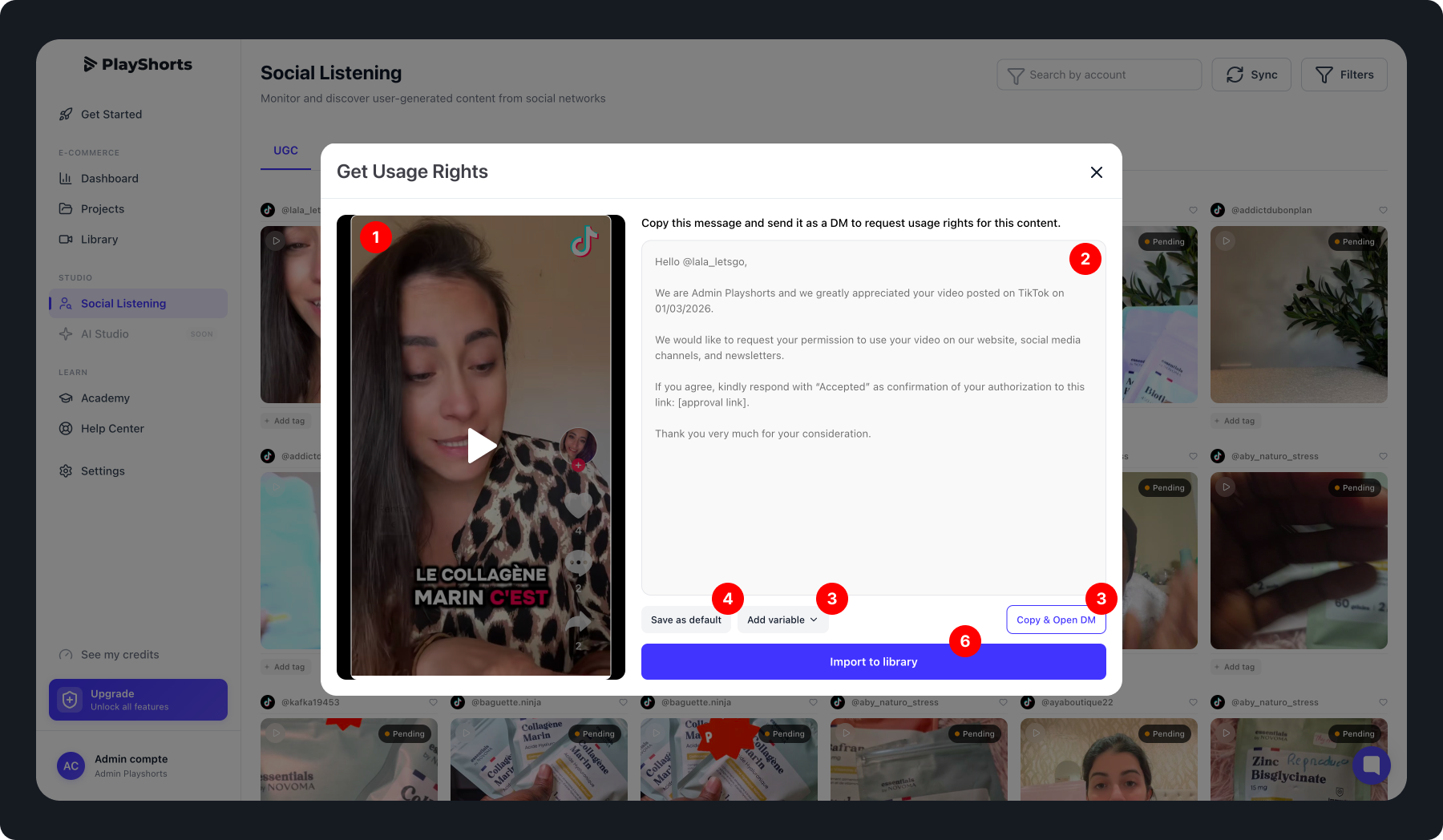
When you open a piece of content, you’ll be able to:
View the media posted by the consumer (photo or video)
Send a message to the consumer to request usage rights
Add dynamic variables (author’s name, post date, your brand name, link for request rights)
Save your text as a default message for future requests
Copy the text and open the platform’s messaging inbox to send it.
Import the media once the usage rights request has been approved
With PlayShorts, you can request copyright permissions for posts published by your consumers.
Here’s how:
Write a personalized message or use a default message with dynamic variables, and insert a personalized link to submit your request.
Once your message is ready, click "Copy & Open Direct Message."
You will be redirected to the consumer’s Instagram or TikTok account, where you can paste and send your message.
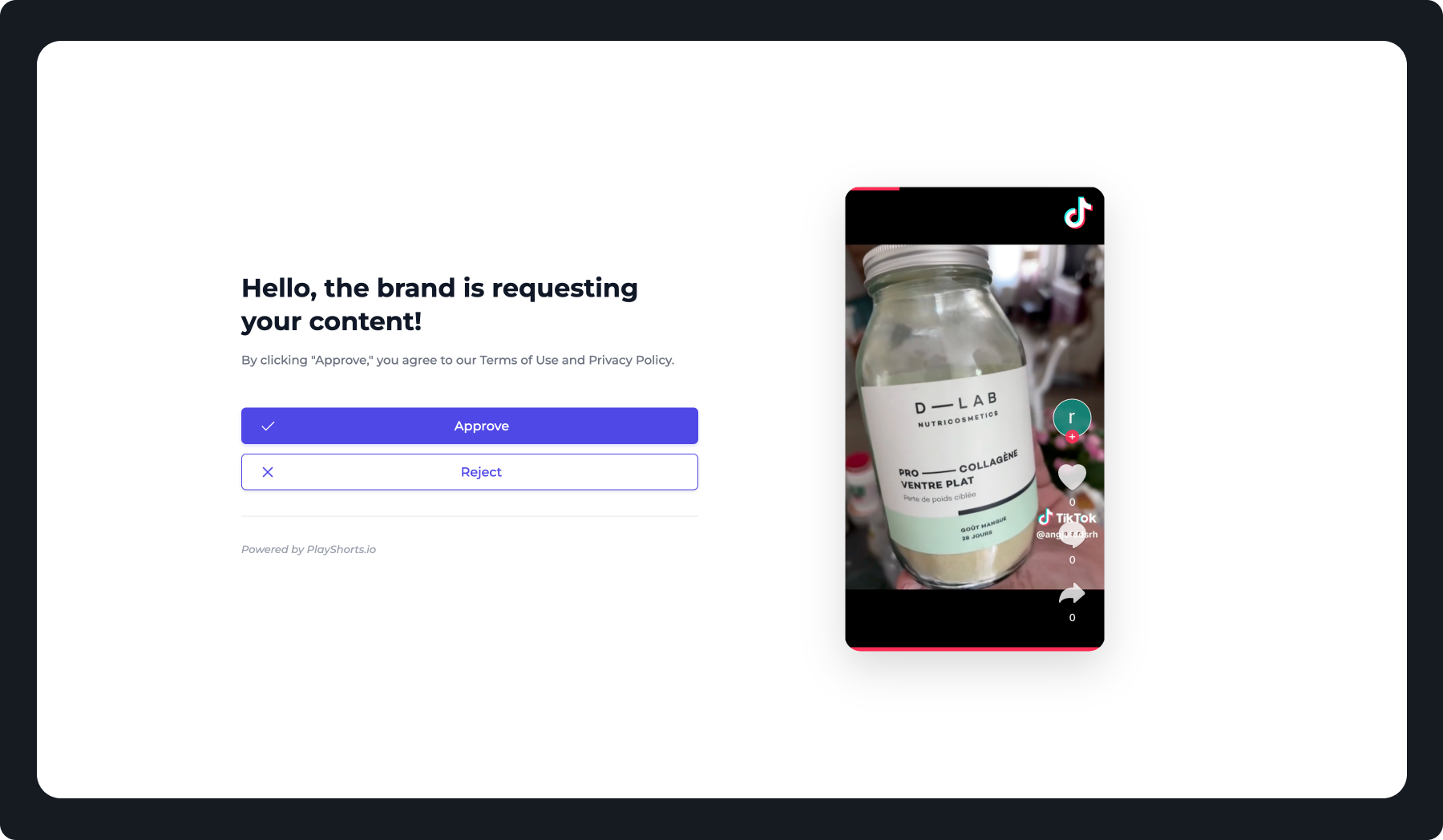
Your message will include a personalized link. When your consumer clicks this link, they can choose whether to grant you usage rights for their content (see image).
Wait for the consumer’s response. If the consumer agrees, open the relevant media and click "Import."