With Playshorts, you can create default designs for your video integrations and product CTAs.
This helps you save time and maintain visual consistency across all your projects — no need to rebuild your design from scratch each time!
A default design lets you pre-save your preferred design settings for:
The default video integration design
The default product CTA design
Once saved, every new project will automatically use these settings, so you don’t have to reconfigure them each time.
There are two ways to set up your default video integration design:
Create a new project or use an existing one in PlayShorts.
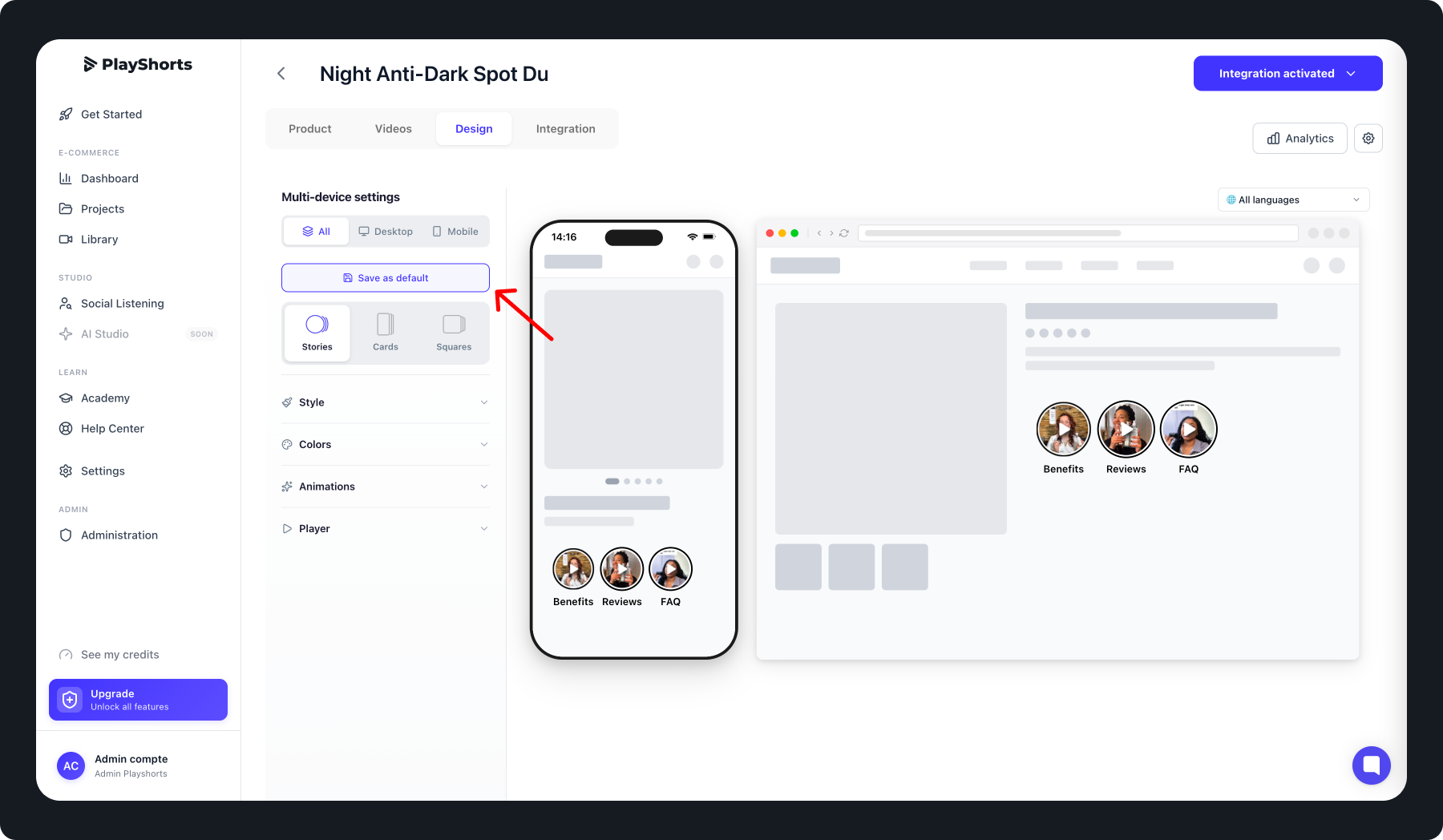
Go to the “Design” tab.
Customize your integration settings as you like.
Click “Save as default” to save this design as your default template.
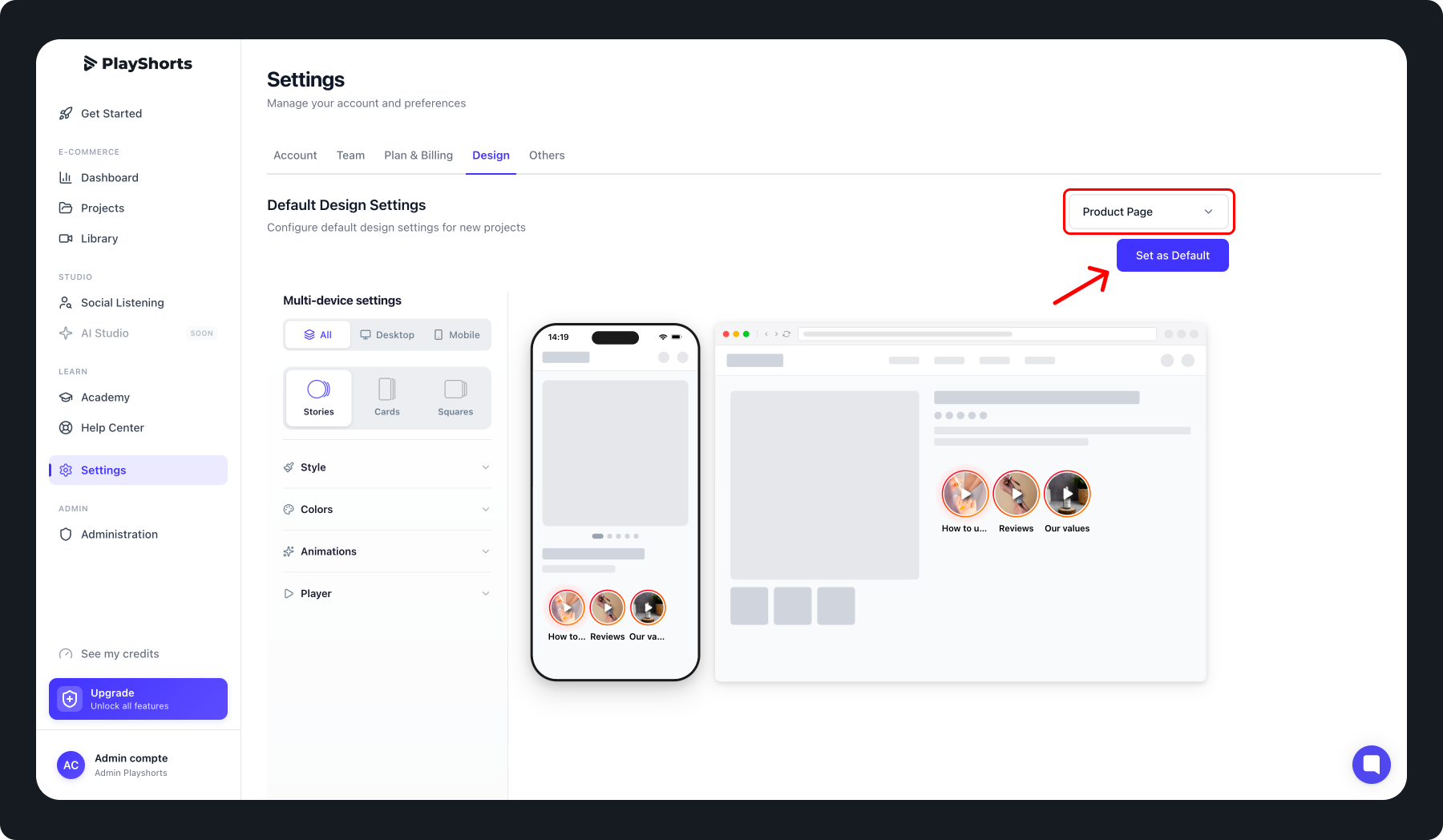
Go to the “Settings” tab in the navigation bar.
Select the “Design” section.
In the dropdown menu on the right, choose “Product page.”
Set your preferred integration parameters.
Click “Save as default.”
💡 Tip: You can also apply this design to all your live integrations by clicking “Apply to all.”
You can also define a default design for your video CTAs (Call to Actions) in PlayShorts.
This saves you from having to configure a new CTA design each time you add one to a video.
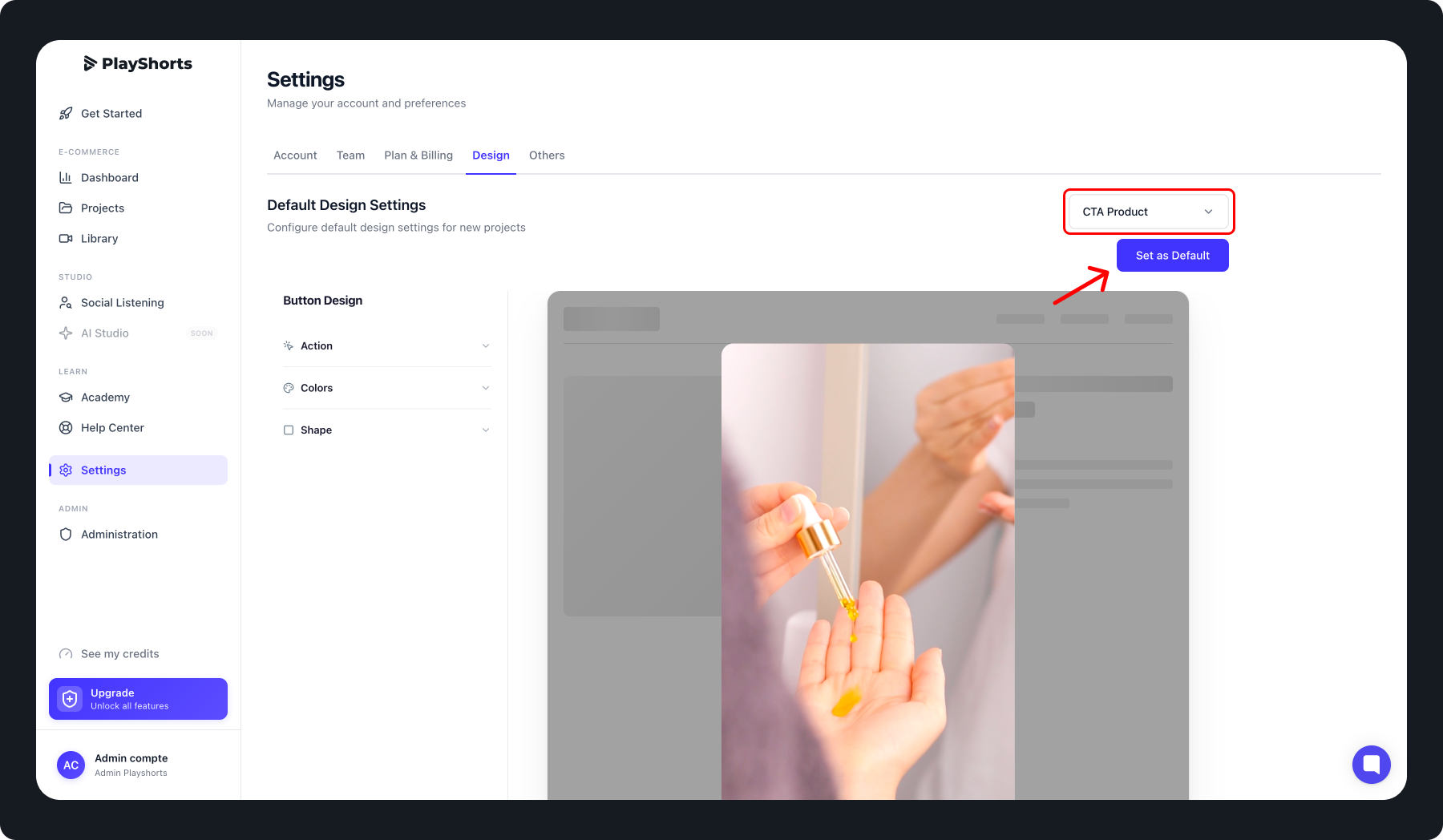
Go to the “Settings” tab in the navigation bar.
Select the “Design” section.
In the dropdown menu on the right, choose “CTA Product.”
Set up your preferred CTA design parameters (colors, fonts, buttons, etc.).
Click “Save as default.”
💡 Tip: To instantly update all your live CTAs with this design, click “Apply to all.”
With PlayShorts default designs, you can:
Centralize your design preferences
Save time when creating new projects
Ensure consistent branding across all your integrations