⚠ IMPORTANT:
Before creating a Dynamic CTA, you must add the “Add to Cart” block to your product pages.
Follow this tutorial:
How to create shoppables video - [Shopify]
How to create shoppables video with PlayShorts?
Why Add a Dynamic CTA?
A Dynamic CTA (Call To Action) lets you add a smart, interactive button directly inside your shoppable videos. This button encourages your visitors to add to cart, buy now, or discover a product—without leaving the video.
The result: higher engagement and more conversions on your e-commerce website.
How it works?
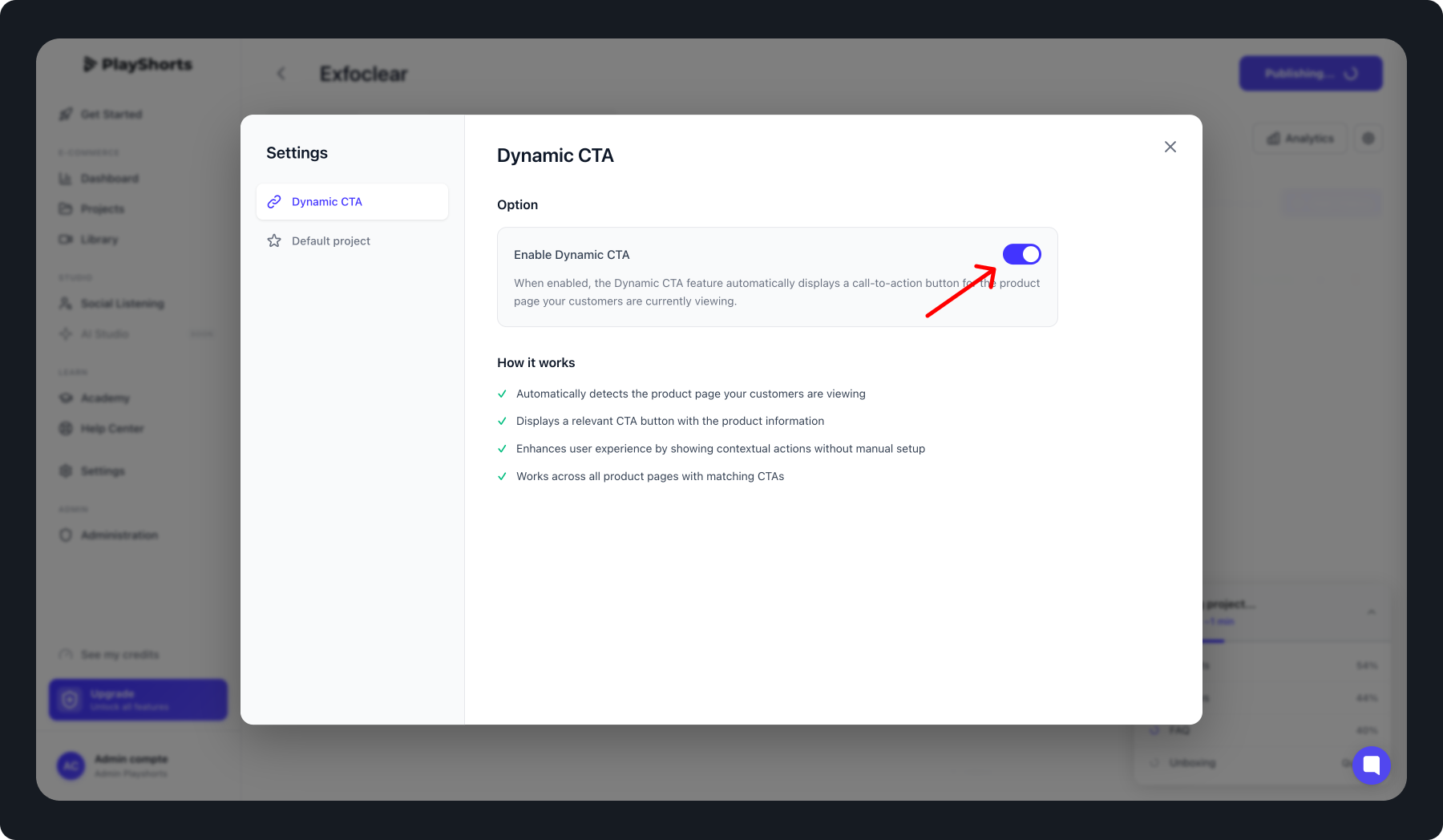
Automatically detects the product page your customers are viewing
Displays a relevant CTA button with the product information
Enhances user experience by showing contextual actions without manual setup
Works across all product pages with matching CTAs
How to Create a Dynamic CTA in a Project
Open or create a project in your PlayShorts dashboard.
Click Settings in your project menu.
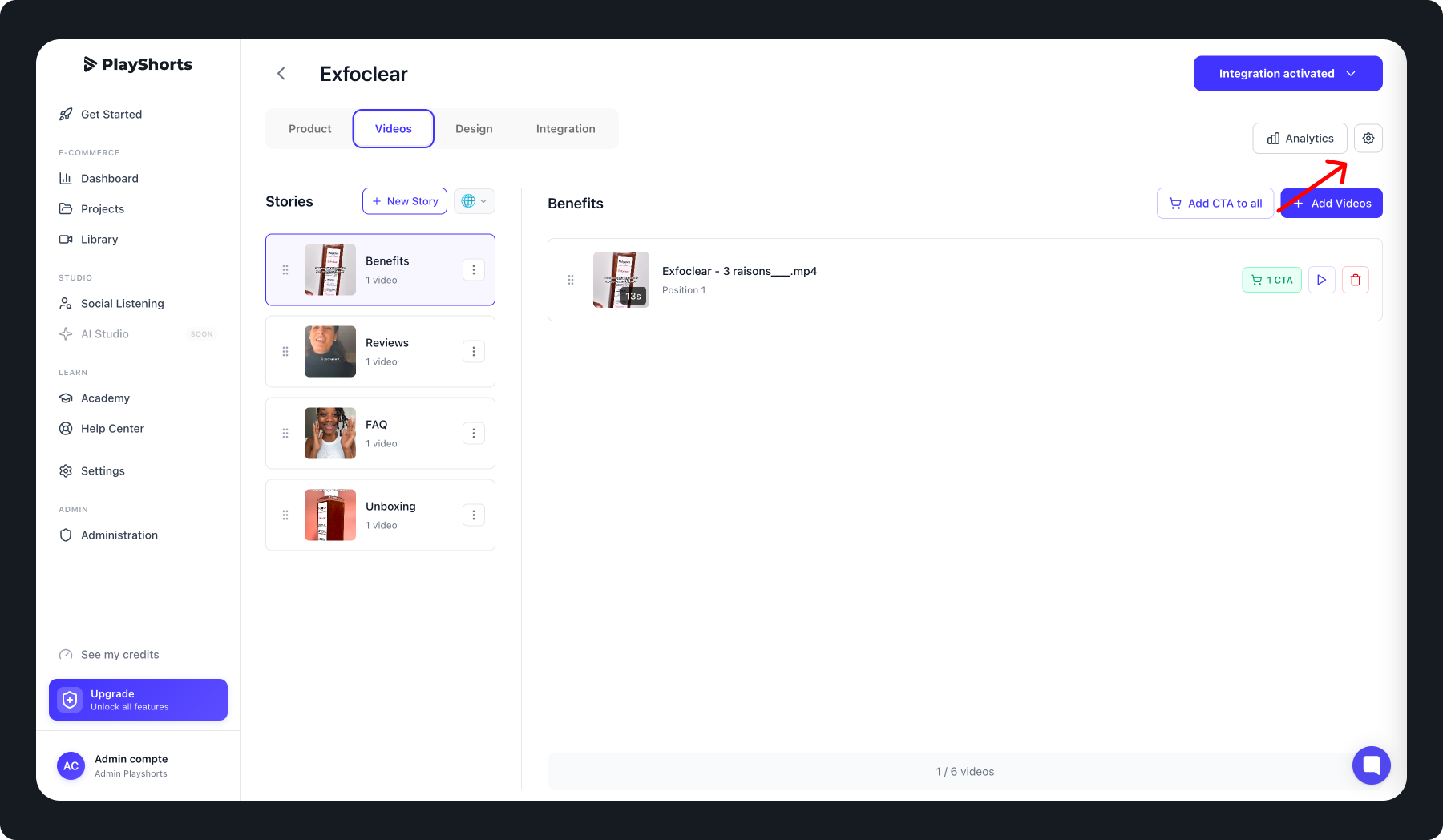
Select Dynamic CTA.
Toggle Activate Dynamic CTA.
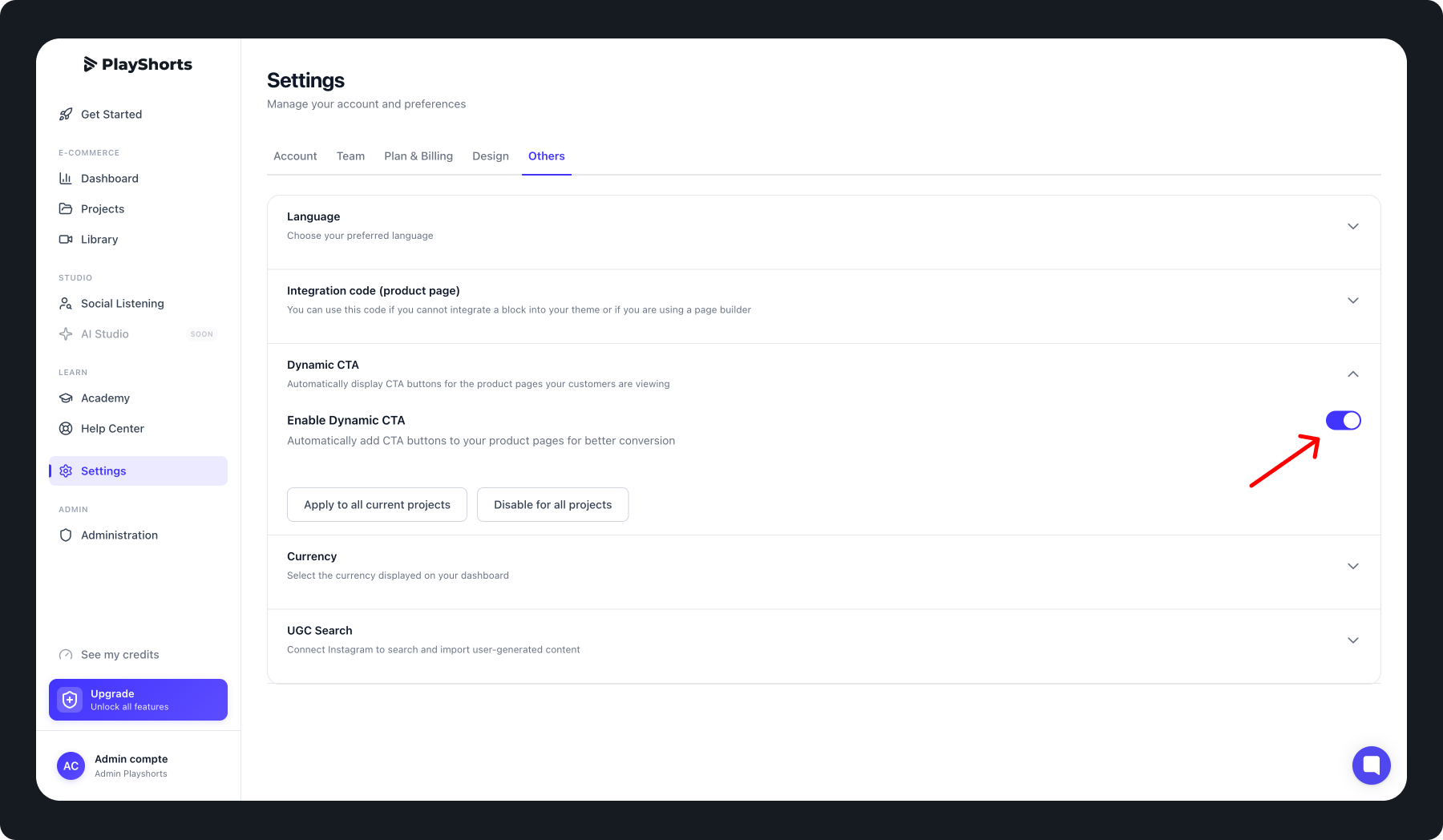
Enable Default Dynamic CTA
If you want every new project to automatically include a Dynamic CTA:
Go to the Settings tab.
Click Others.
Select Dynamic CTA.
Activate the Default Dynamic CTA option.
Apply a Dynamic CTA to All Existing Projects
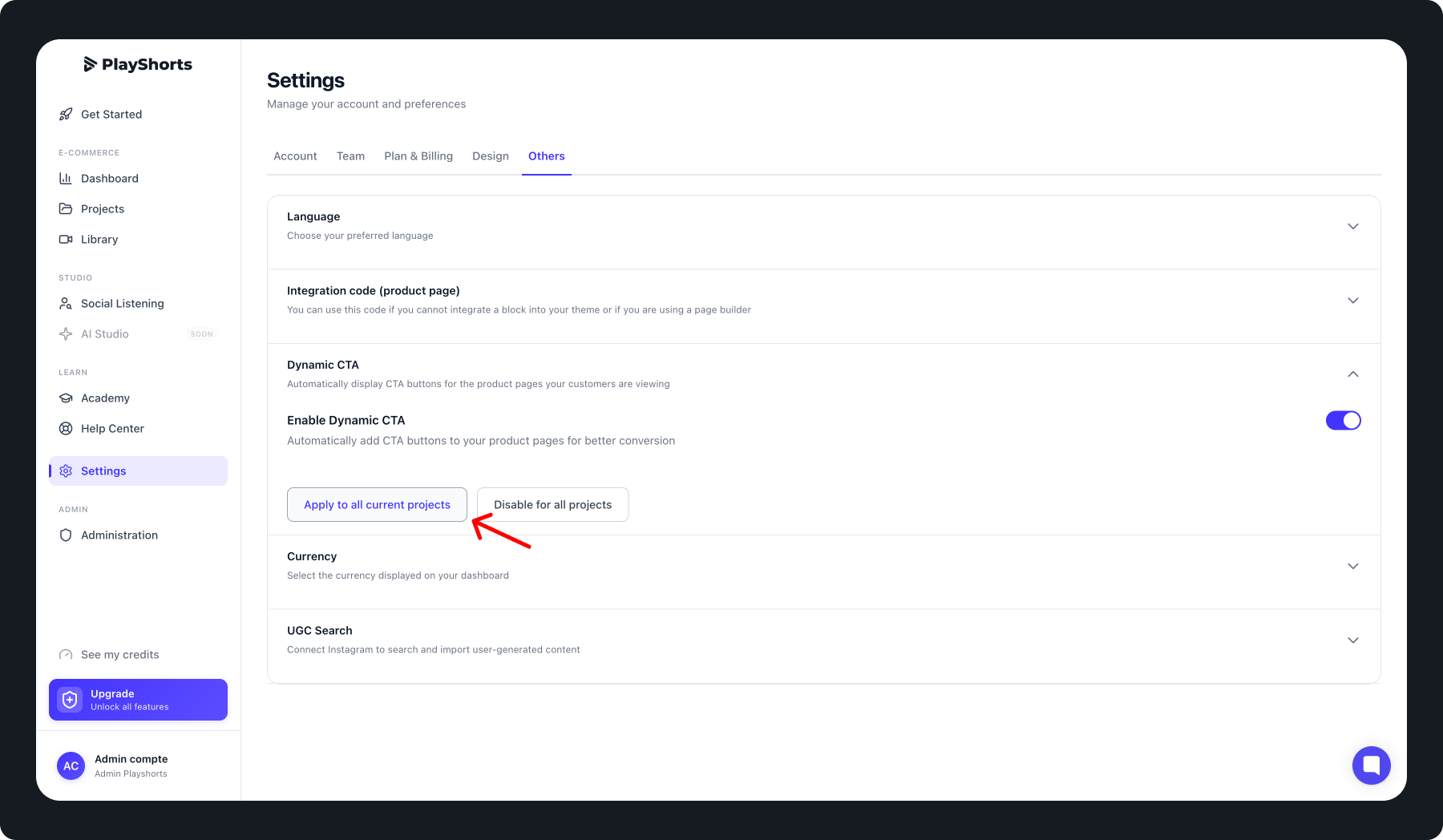
You can also enable the Dynamic CTA across all your existing projects in one click:
Go to the Settings tab.
Select Others.
Click Dynamic CTA.
Press Apply to all current projects.