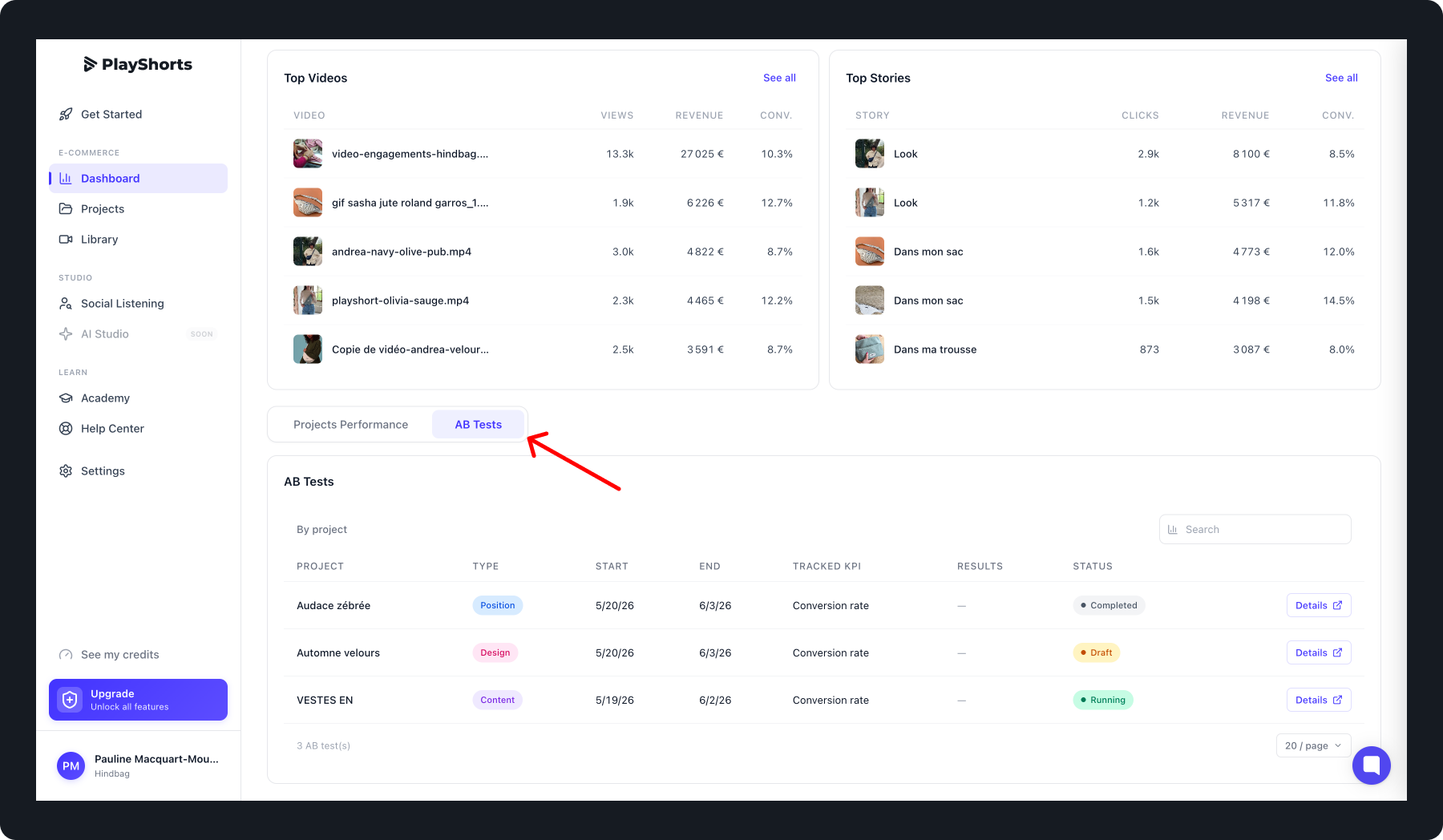
To create an A/B test, click on the settings once the project is created.
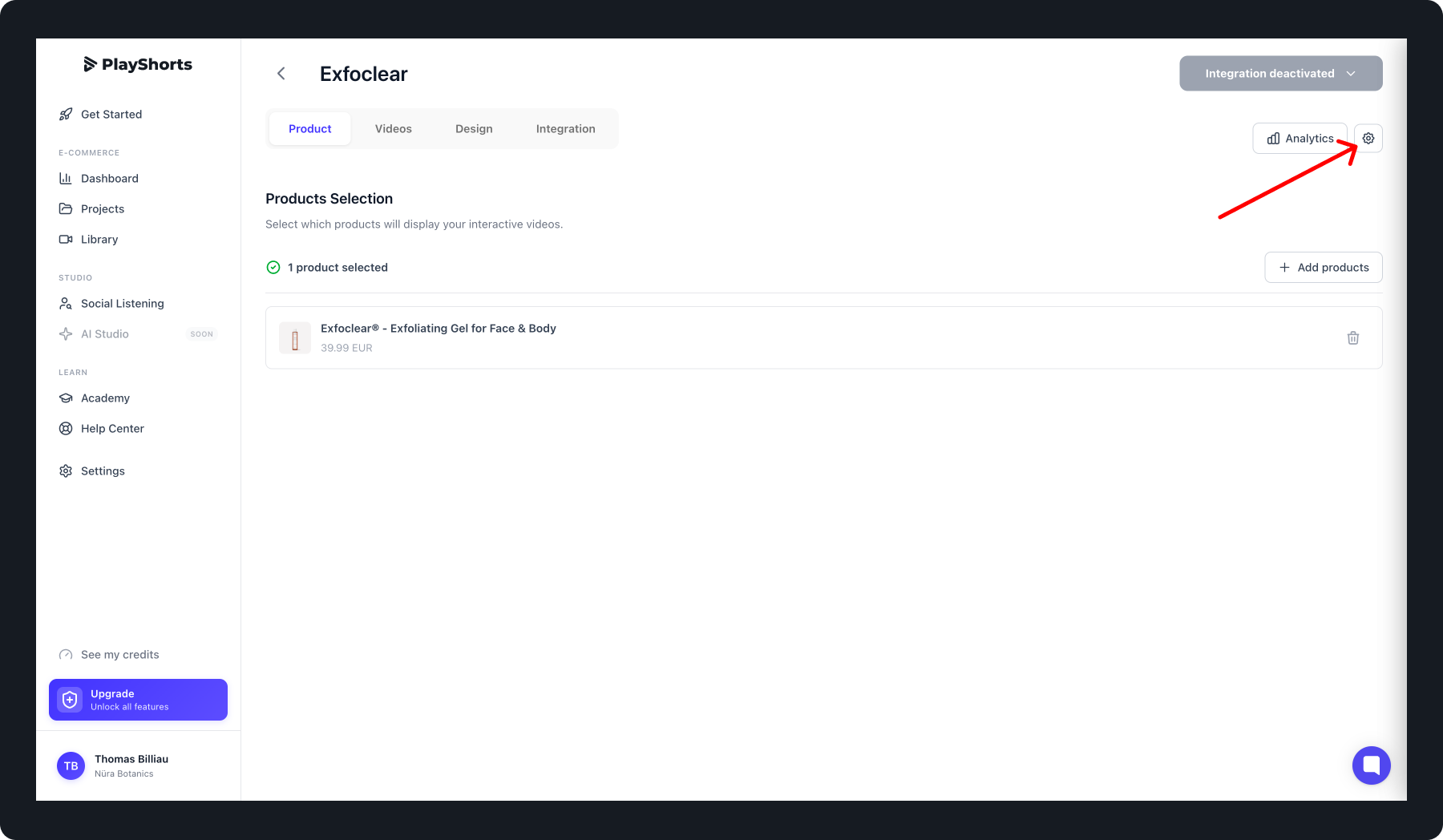
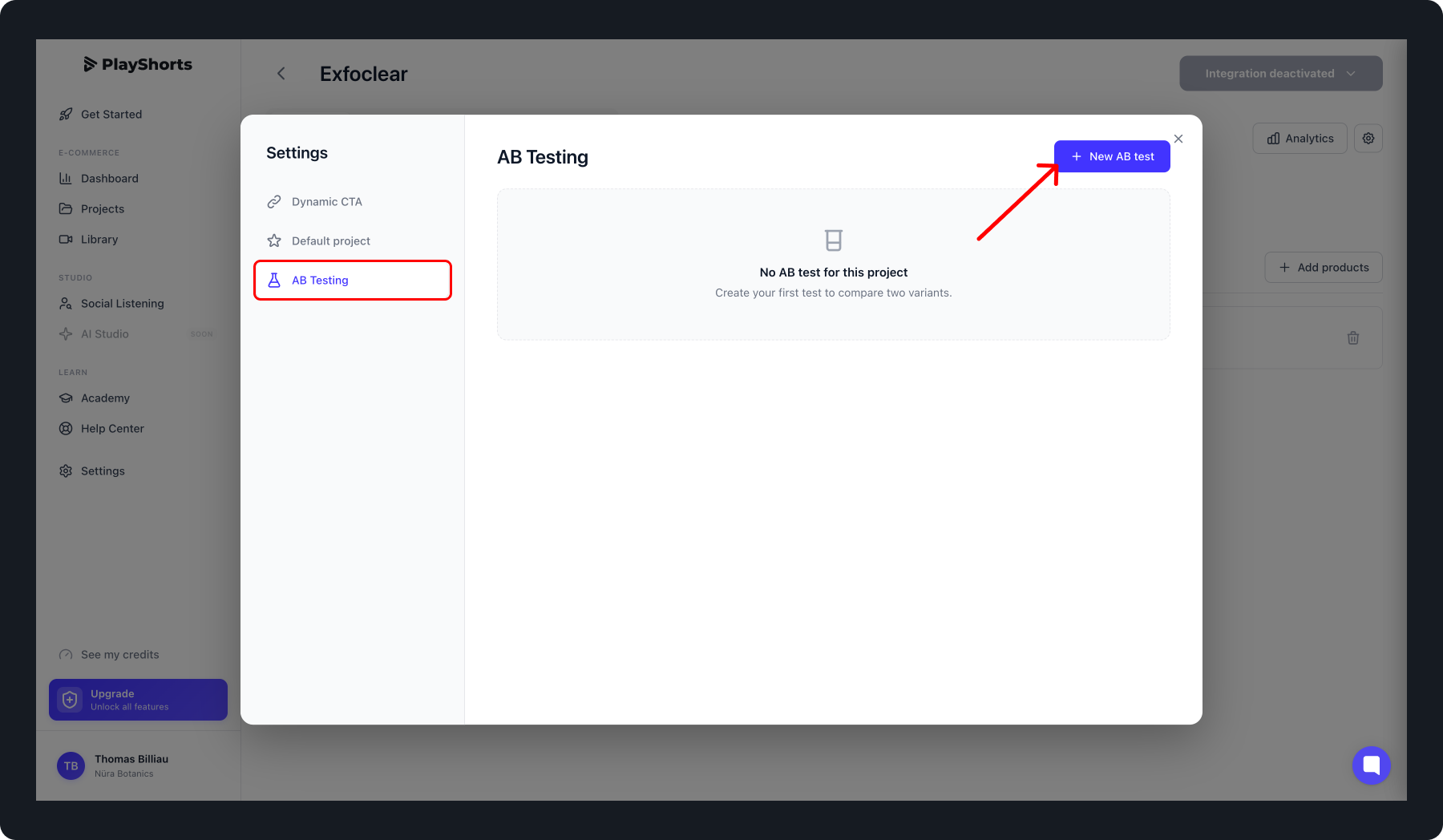
Go to the A/B Testing tab, then click on Create new A/B test.
Select the A/B Test Position.
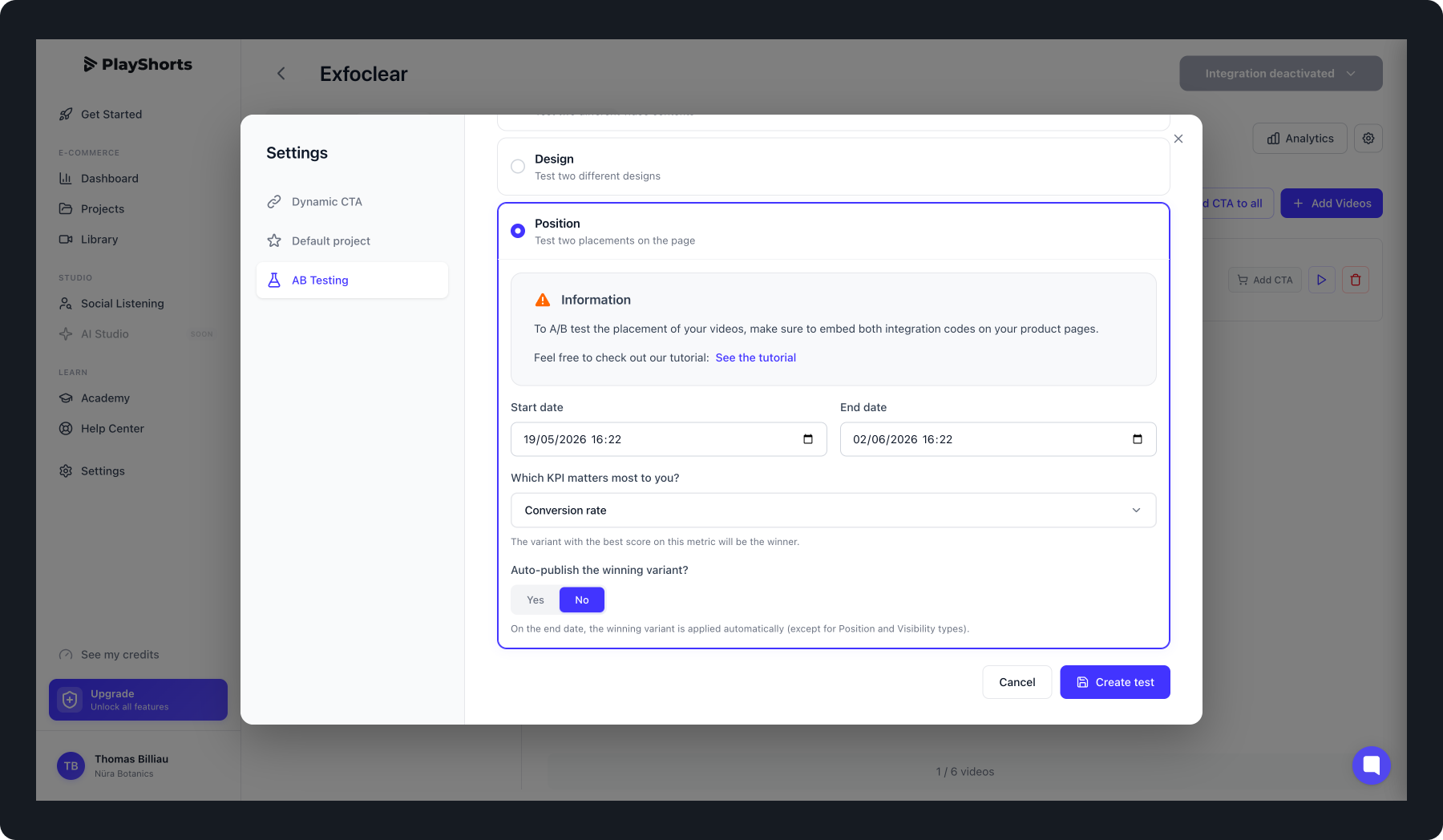
Once selected, set the A/B test start date and end date. Choose the most important KPI for you from the list provided.
If you want, you can enable auto-publish mode, which allows PlayShorts to automatically publish the A/B test variant that performs best on the selected KPI.
Once the A/B test is created, click on Create Test.
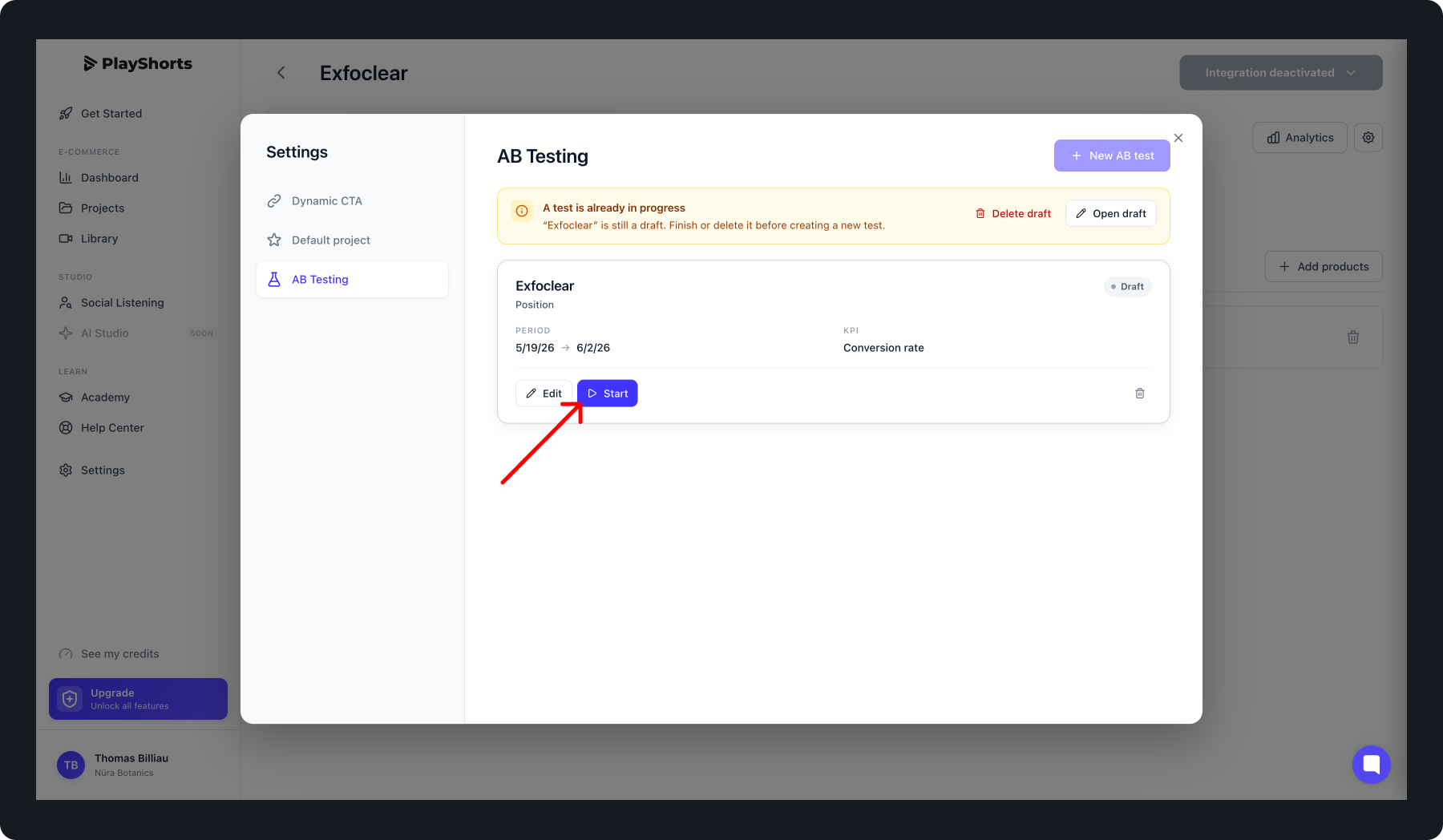
If you want to launch the A/B test immediately, click on Start. Otherwise, the A/B test will start automatically at the scheduled date.

To run a position A/B test, you need to add a second PlayShorts block on your product page template.
Why? This second block allows videos to be displayed in a different location so you can properly run the A/B test.
To do this, go to your store’s back office and add a second block:
For Shopify stores : Add the block “PlayShorts - PDP A/B Test” at the location where you want to display your variant.
For other CMS : Simply add the provided code at the location where you want to display your variant.
During the A/B test, you can track your campaign results in two ways:
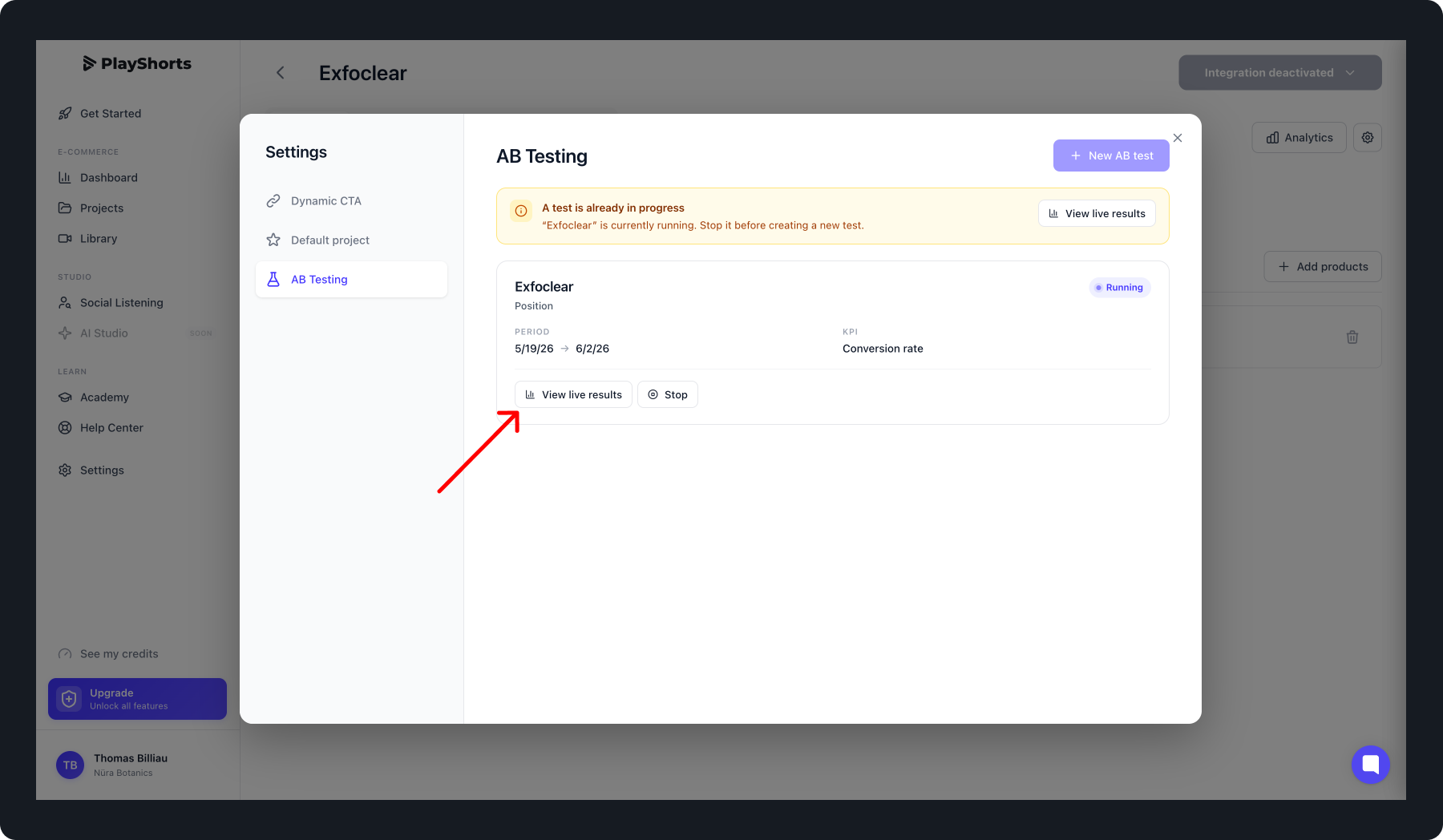
Go to the relevant project, click on Options > A/B Testing, then click on View live result
Or directly from your dashboard, in the A/B Tests tab, where you will find all your campaigns. Click on Details to view the results