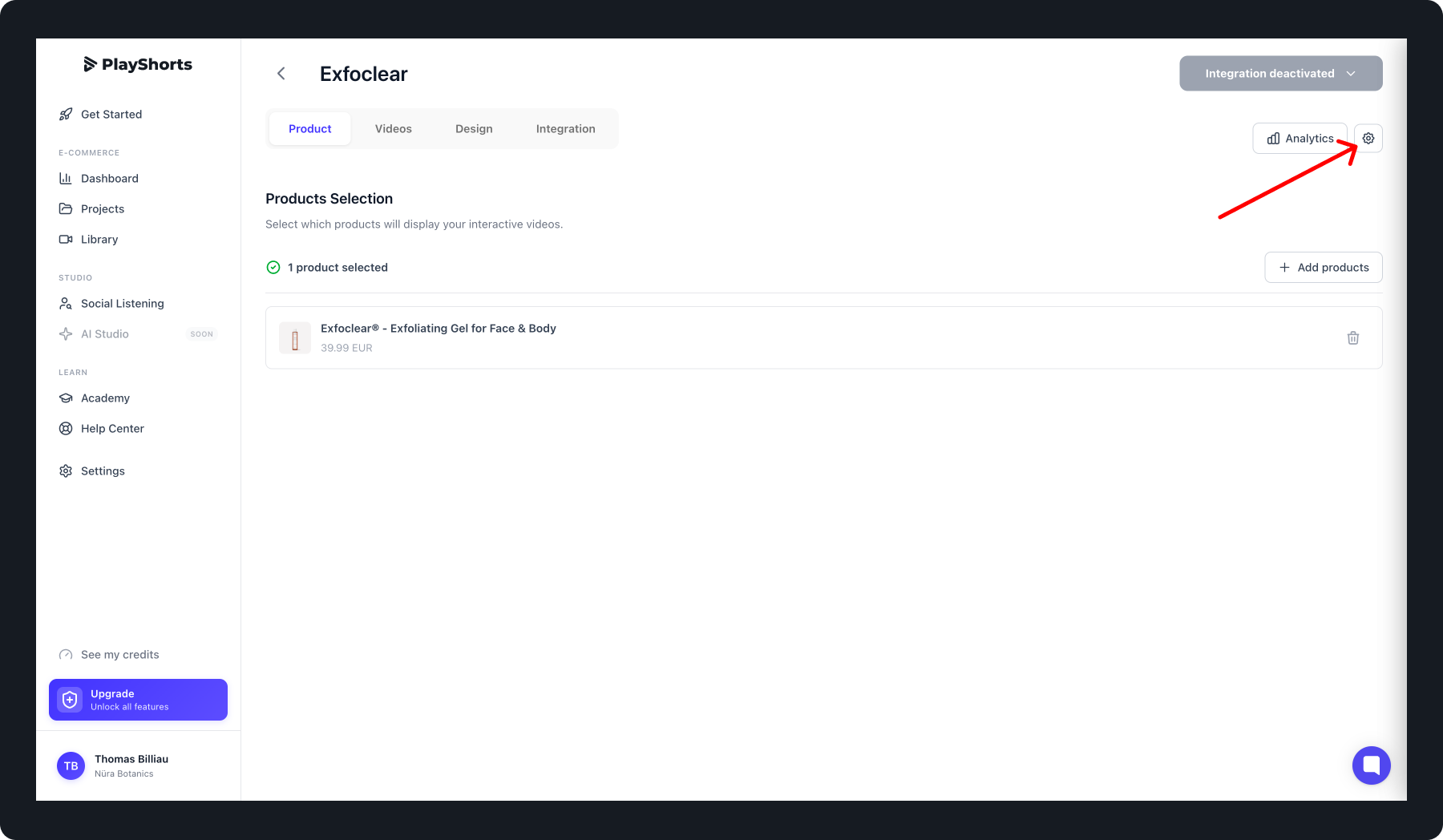
To create an A/B test, click on the settings once the project is created.
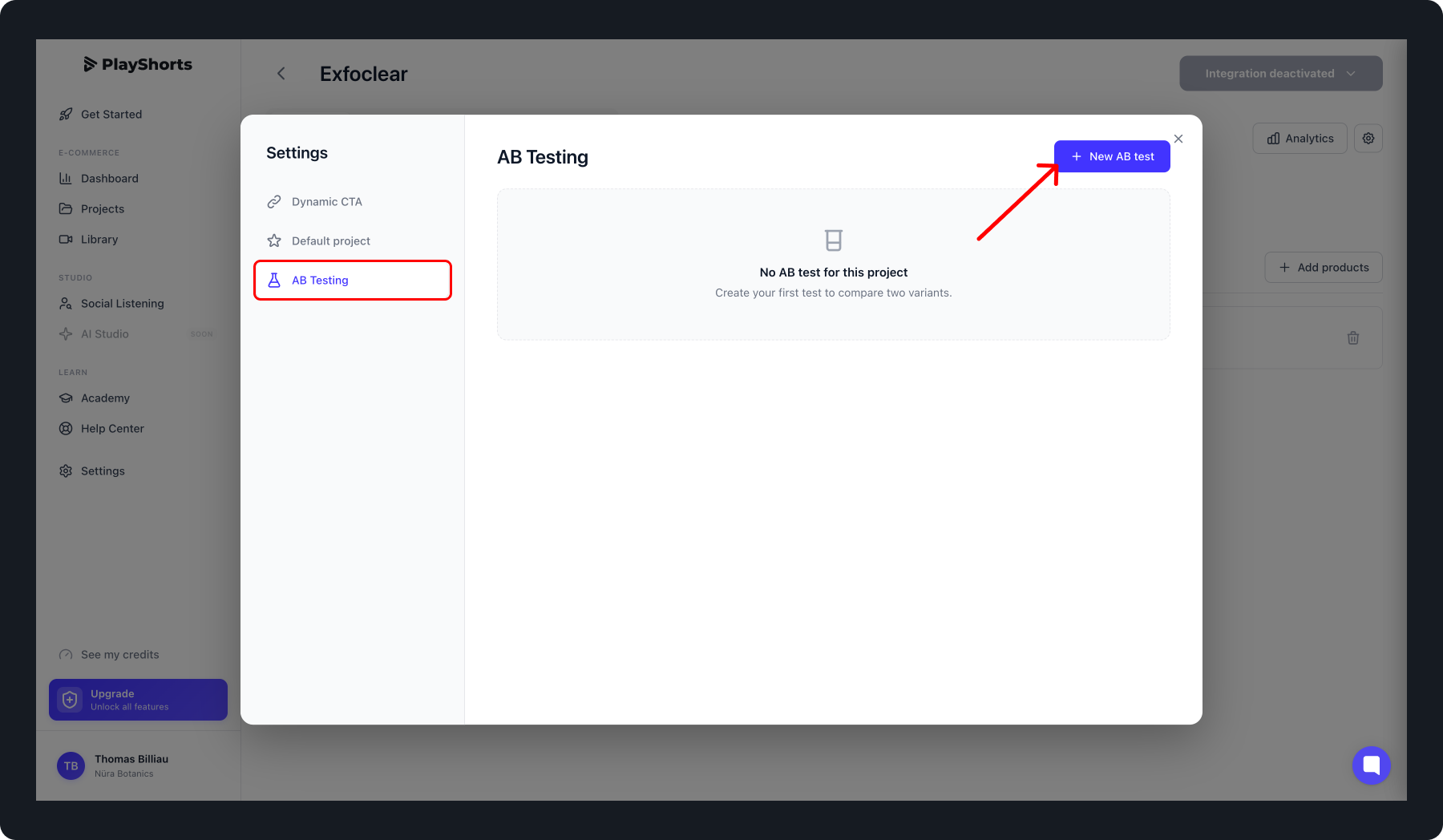
Go to the A/B Testing tab, then click on Create new A/B test.
Select the A/B Test Design.
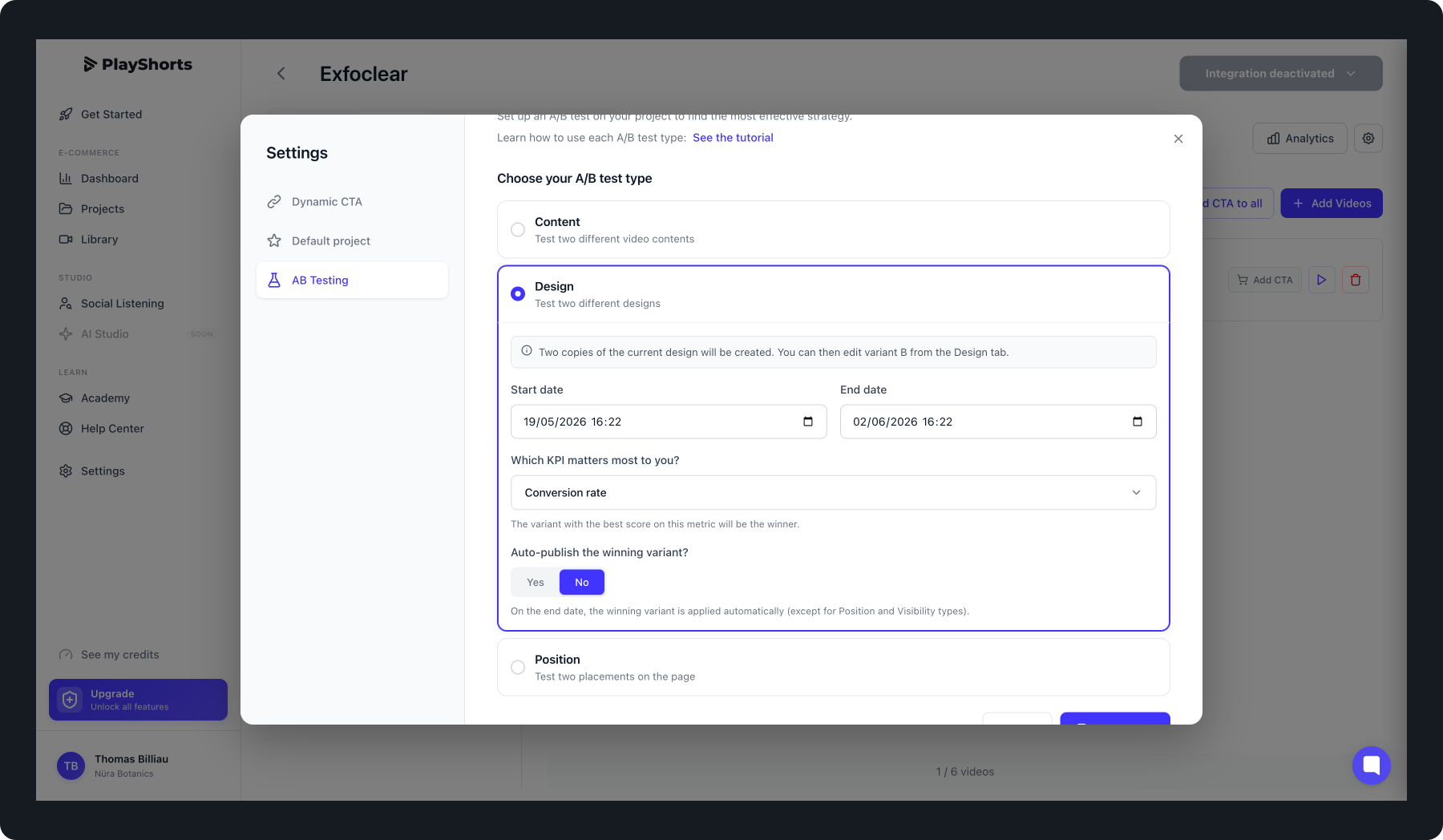
Once selected, set the A/B test start date and end date. Choose the most important KPI for you from the list provided.
If you want, you can enable auto-publish mode, which allows PlayShorts to automatically publish the A/B test variant that performs best on the selected KPI.
Once the A/B test is created, click on Create Test.

Before launching your A/B test, you need to create your two design variants. To do so, click on “Edit design A”, “Edit design B”, or close the pop-up.
In the Design tab of your project, you can add the design of your choice in “Design A” and in “Design B”.
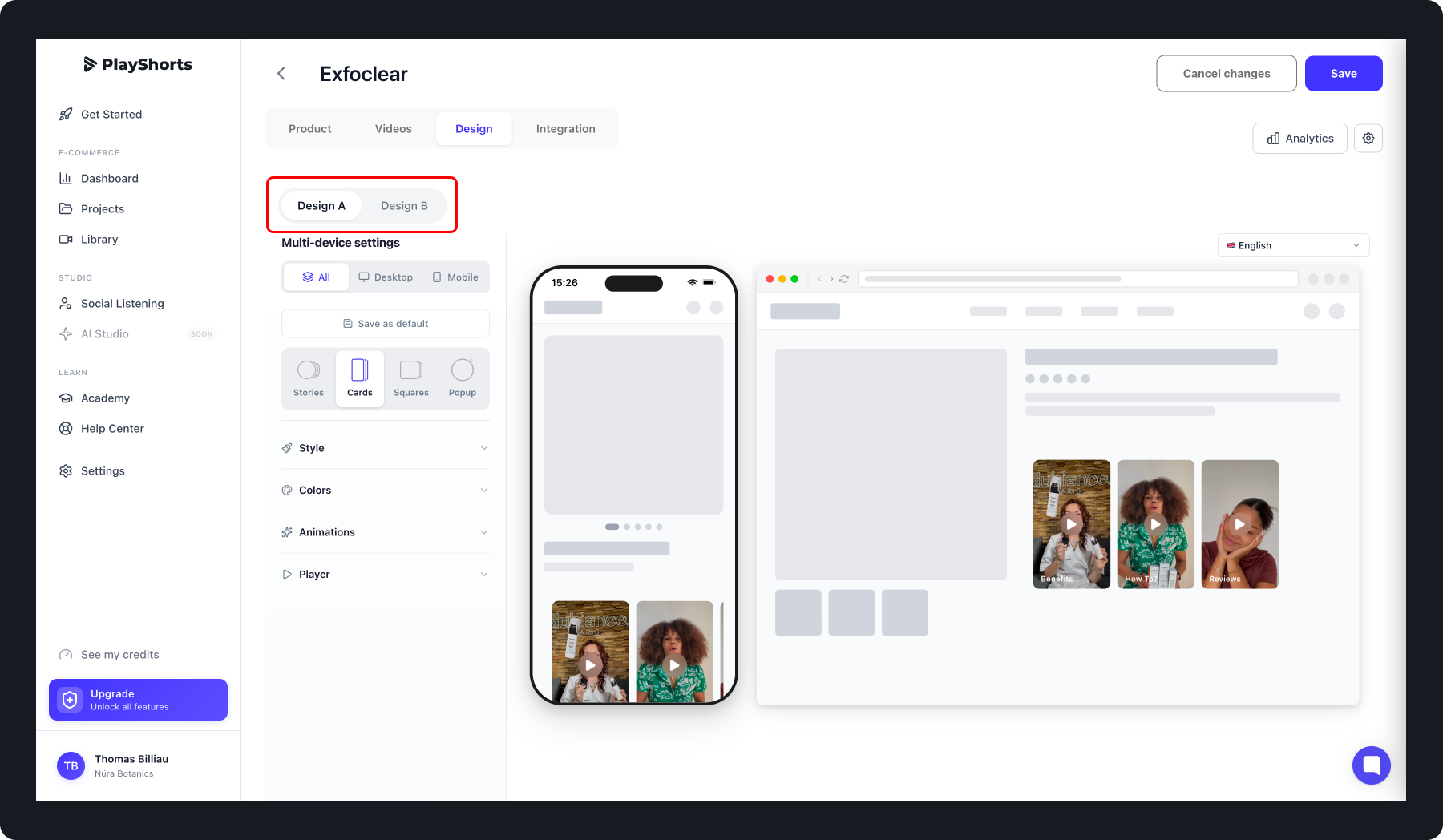
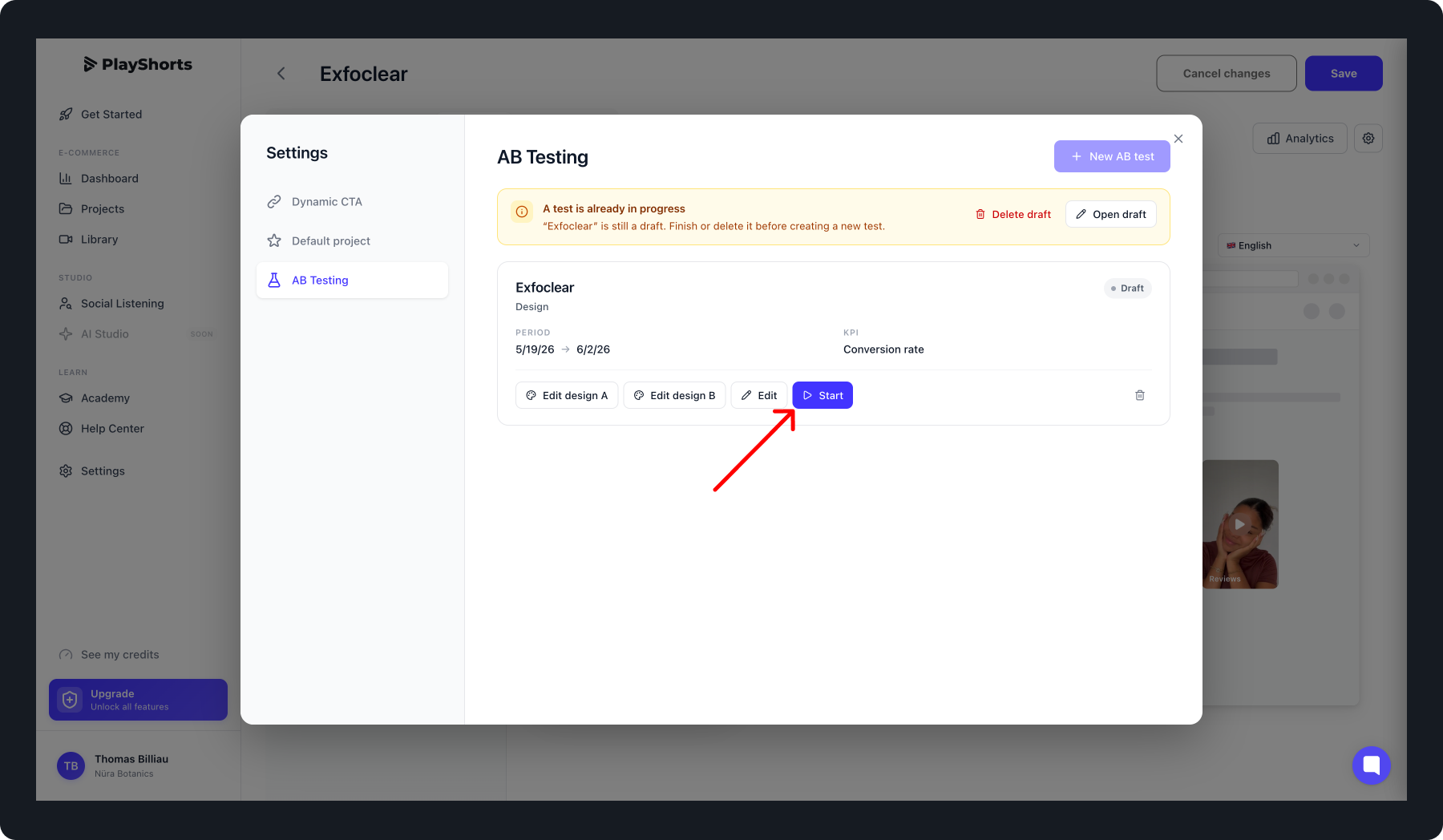
Once your content is set, if you want to launch the A/B test immediately, go to Options > A/B Testing and click Start. Otherwise, the A/B test will start automatically at the scheduled date.
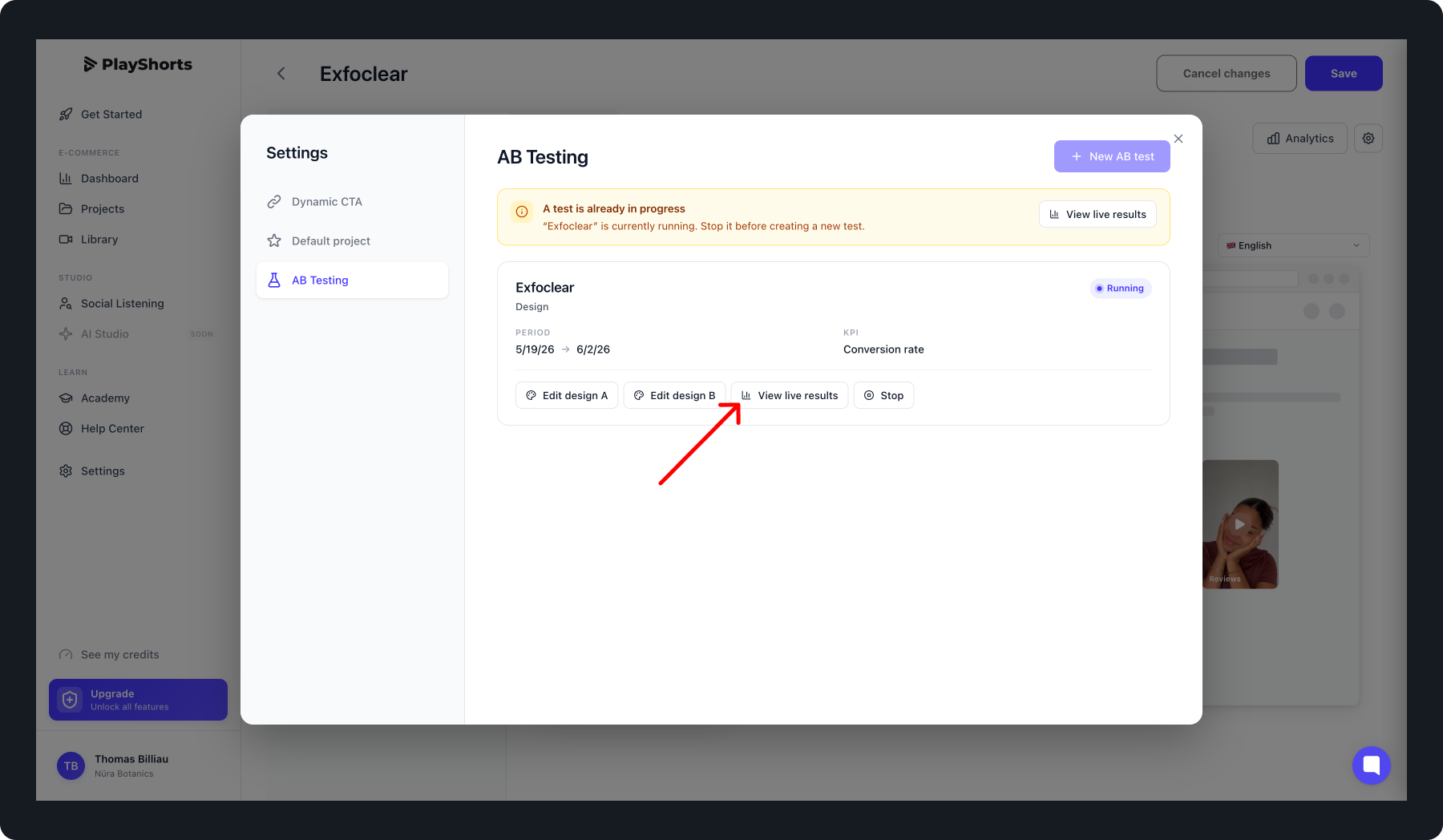
During the A/B test, you can track your campaign results in two ways:
Go to the relevant project, click on Options > A/B Testing, then click on View live result
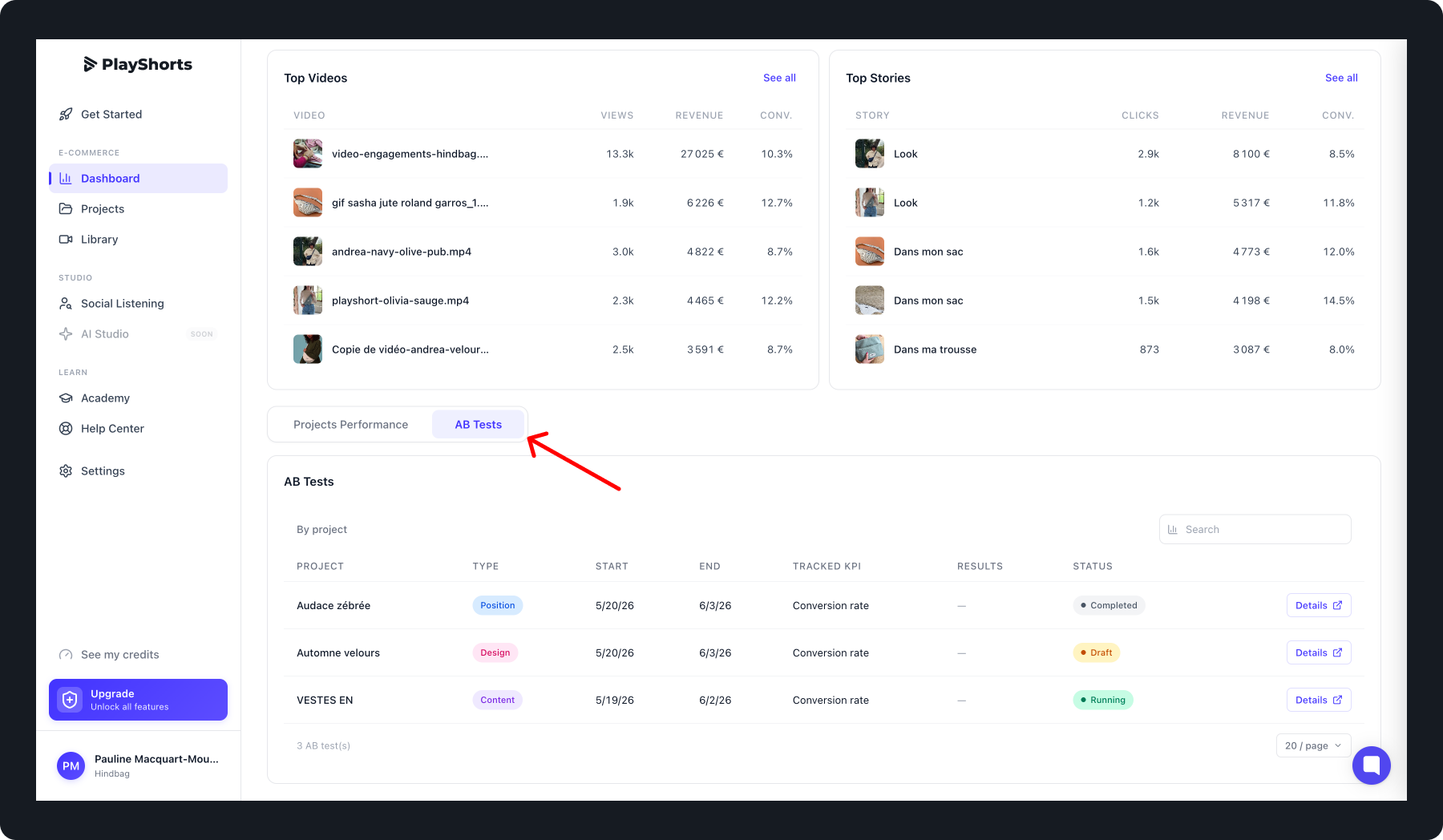
Or directly from your dashboard, in the A/B Tests tab, where you will find all your campaigns. Click on Details to view the results