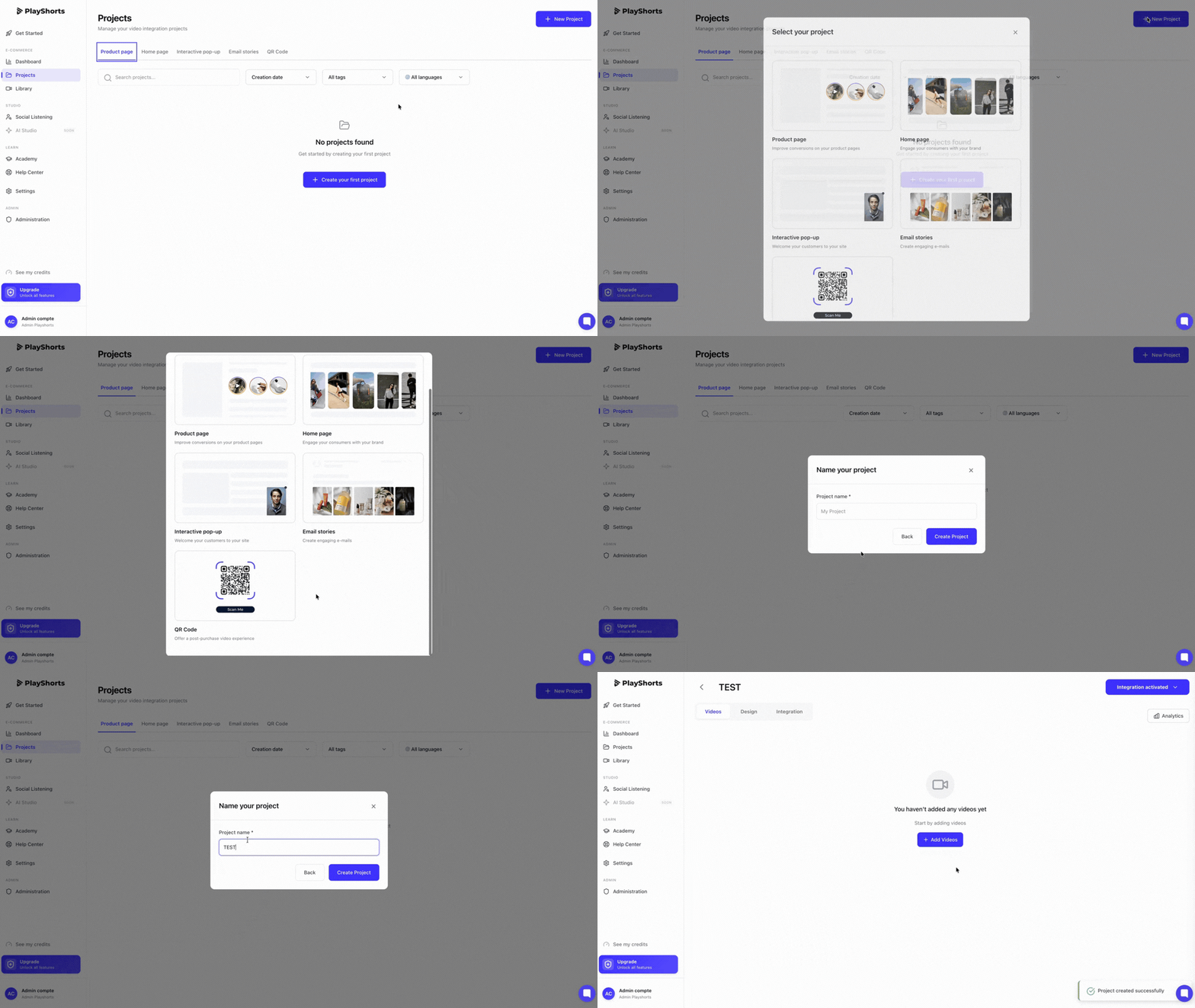
Create a “QR code” project
Name your project
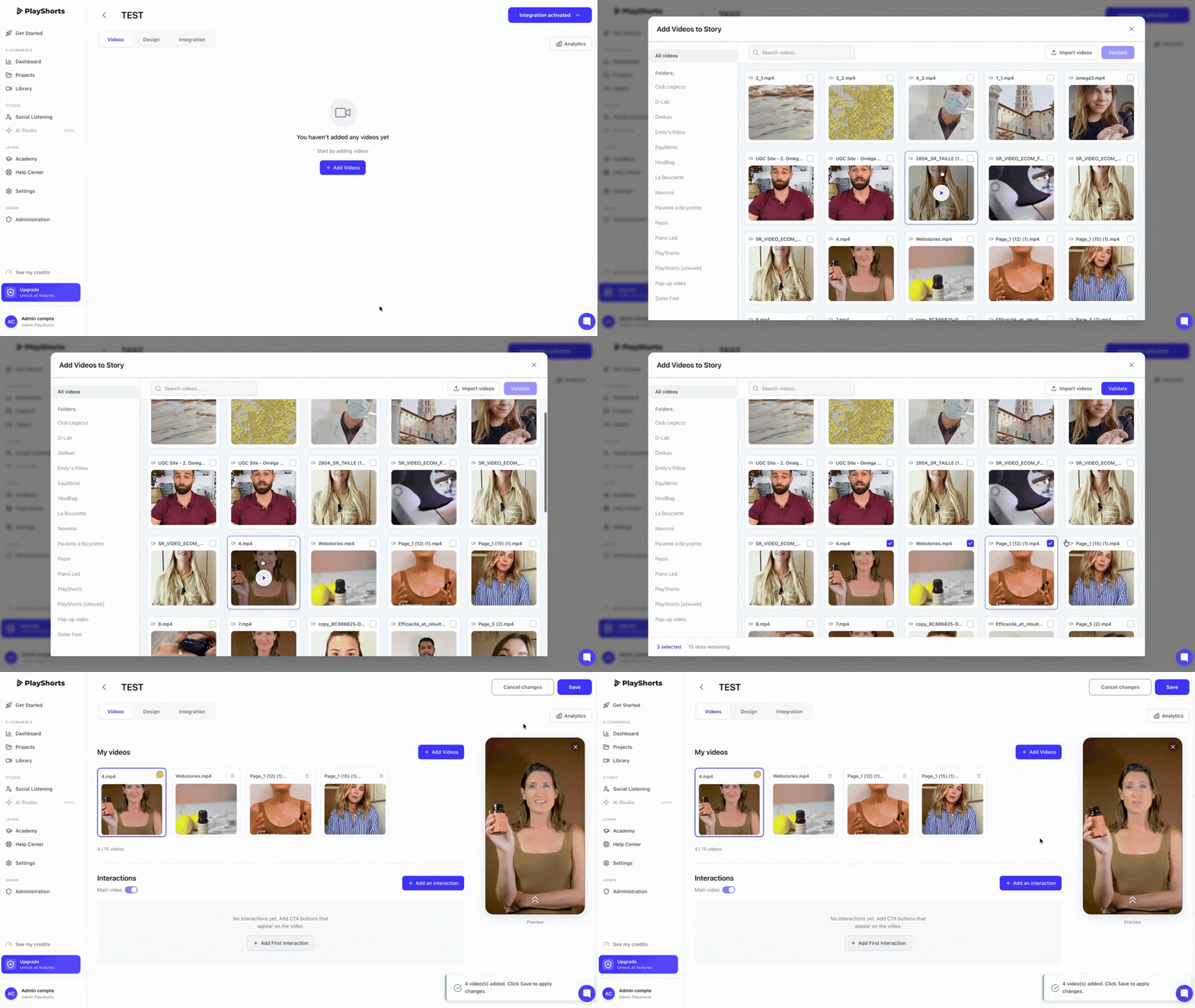
Click on “Add videos”.
In the pop-up window, select videos already imported into our solution or import new videos by clicking “Import other videos”.
Once you have selected your videos, click on “Validate”.
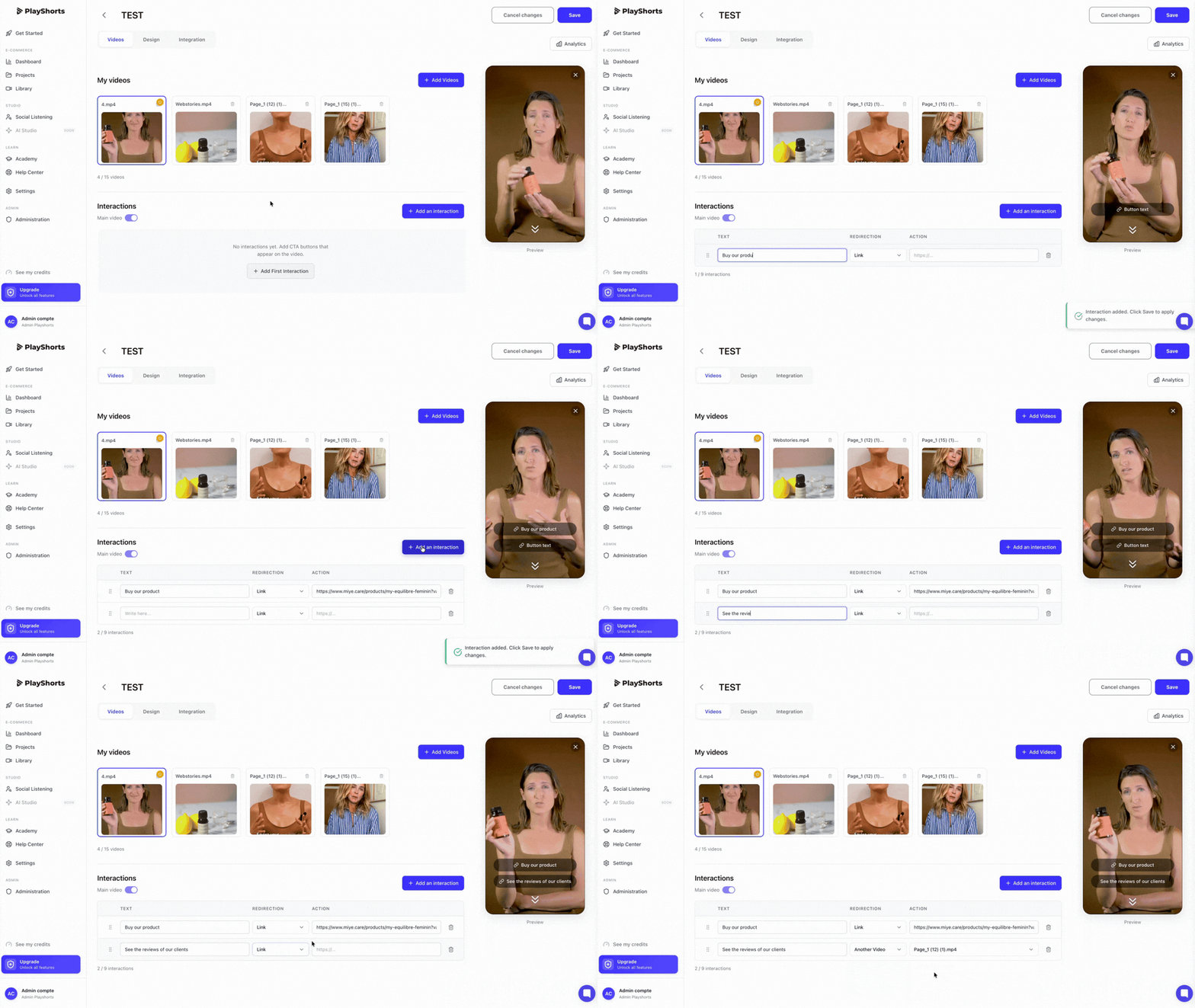
Your QR code is interactive, so you can create interactions on your video by redirecting your customers to another video or web page.
Define your main video (the video that will appear first when the video pop-up is played)
Create interactions
Create redirects to other videos uploaded in your project
Create redirects to web pages
Follow the live rendering on the right of your screen (don't forget to press the two little arrows to make the interactions appear).
Add other interactions by pressing “Add interaction”.
Don't forget to save your changes by pressing “Save”.
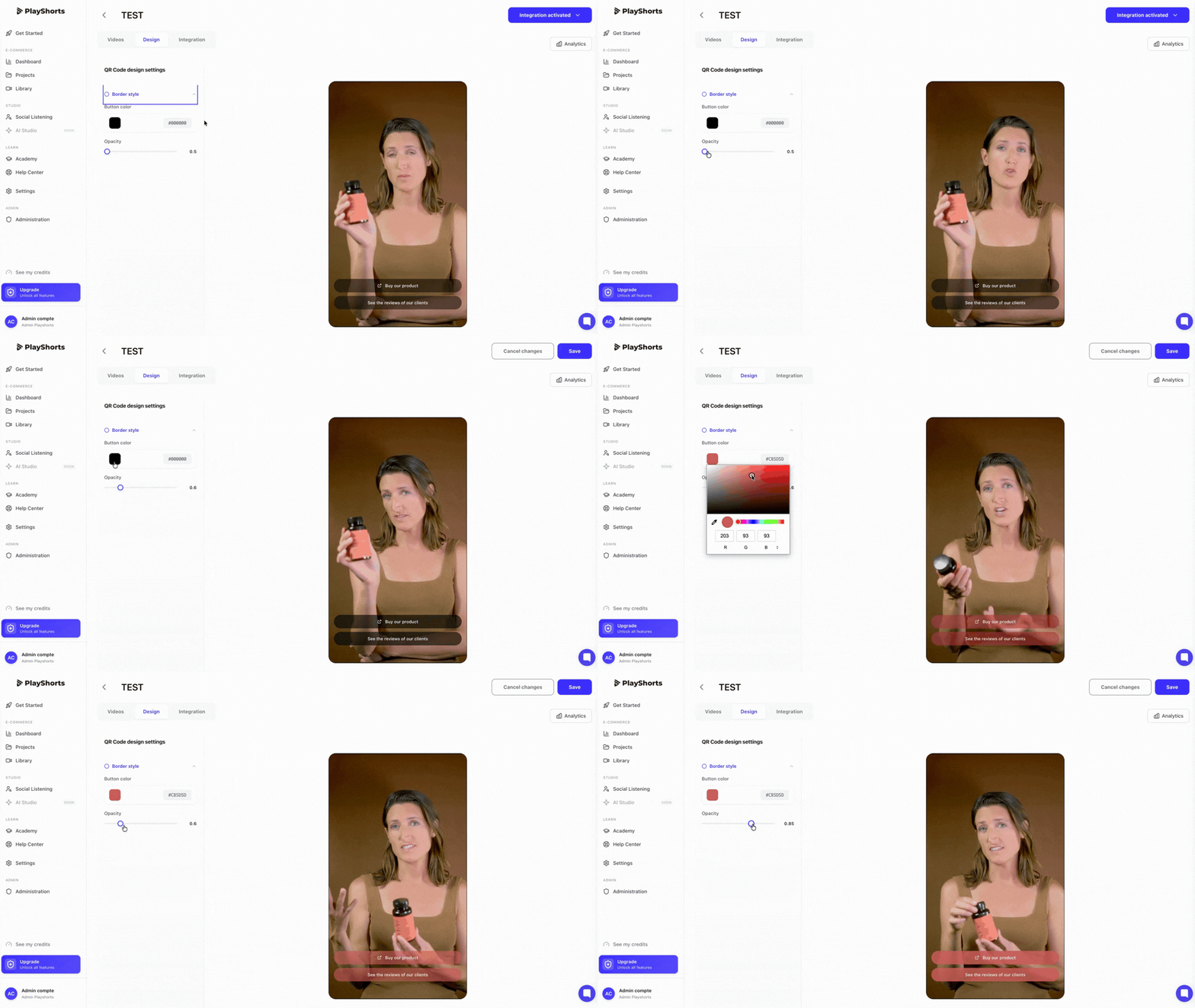
In the “Design” section you can customize the color and opacity of your interactions.
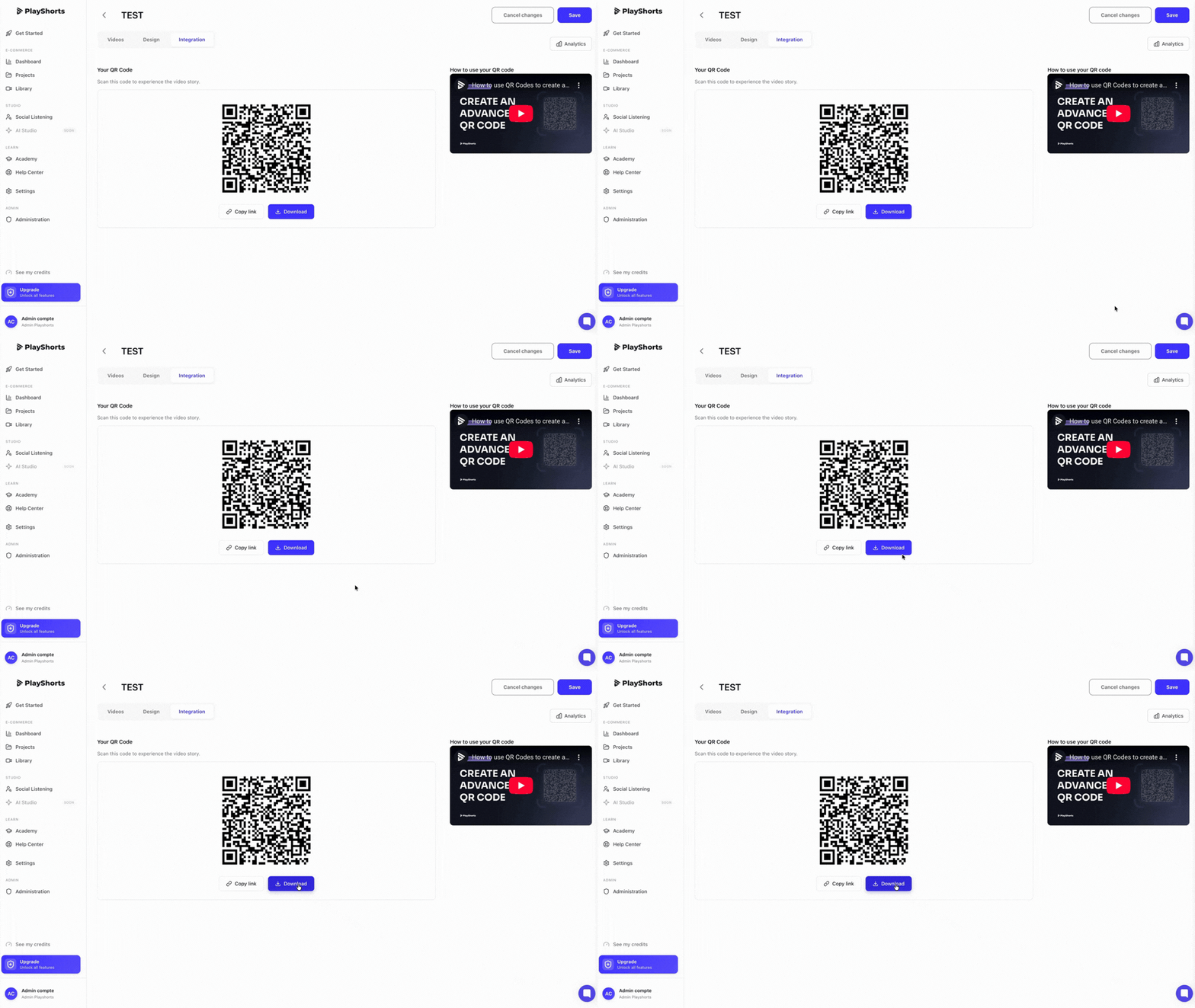
In the “Integration” section, find your QR Code.
💡 Note : You can modify your project QR Code changes will be made live.